
Find symbol
Box one example of a symbol on a vector PDF and Plankore finds every matching one — on the page, all pages, or a region — then counts them for you.
For things drawn as symbols rather than words — receptacles, sprinkler heads, a fixture type, a keynote bubble.
What it needs
A vector PDF. Symbol search matches linework; "Needs a vector PDF. Scanned sheets have no linework to match." The Image search mode is coming soon. Works on any plan (Core included).
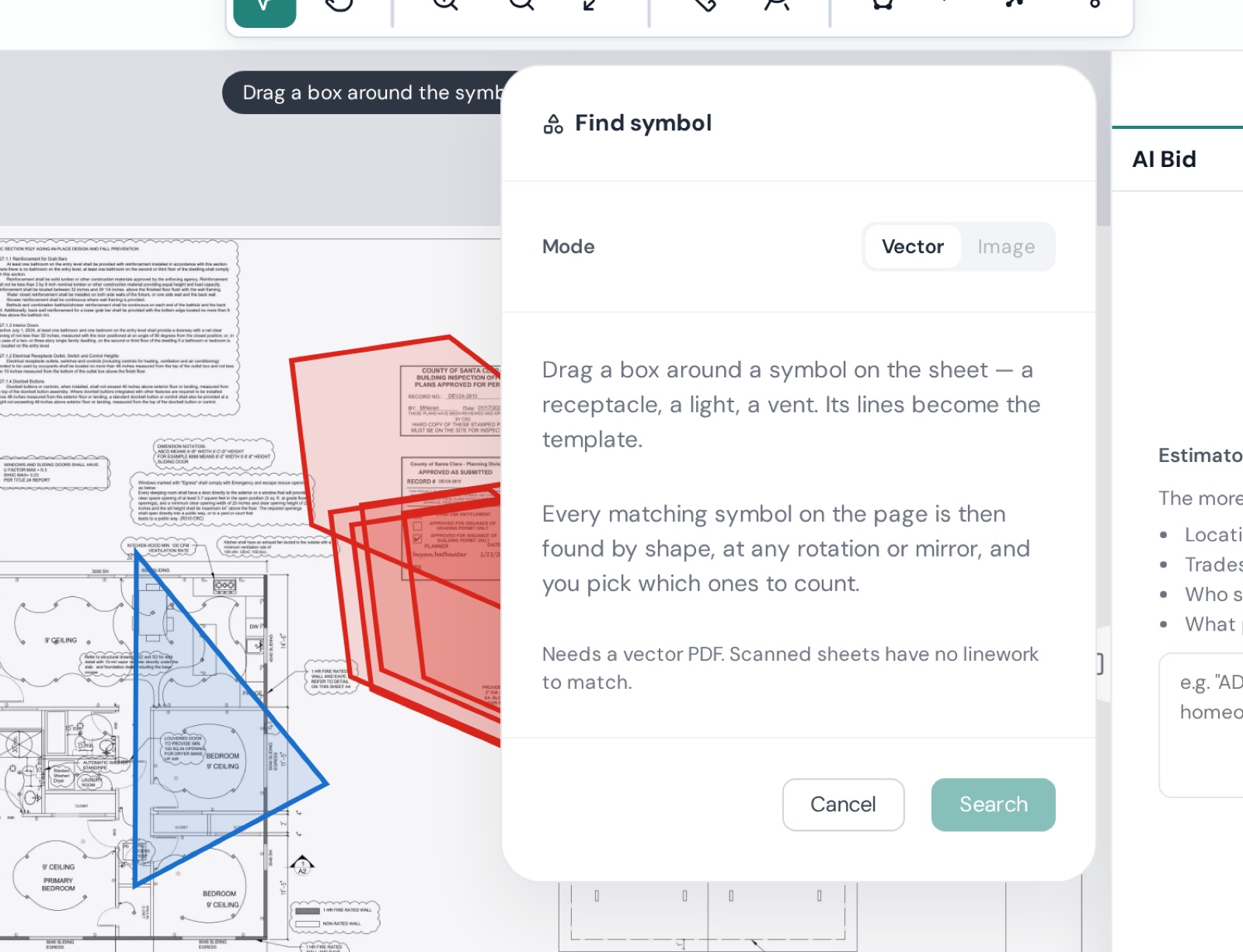
Run a search
- AI takeoff → Find symbol (or box a symbol with the Move tool → right-click → Auto count symbol).
- Drag a box around the symbol — one clean example, as tight as you can. Esc cancels.
- Refine the template. The lines the box picked up are highlighted; each is In symbol or Excluded. Click a highlighted line on the sheet to select it in the list, double-click to toggle it out — leader lines and neighbouring text should be excluded. Select all resets. "If your symbol isn't in this list, box more of it and search again."
- Search in: Current page, All pages, or Selected region ("Drag a box on the sheet to limit the search to that area.").
- Adjust Sensitivity if you get too few or too many hits, then Search.
Every matching symbol is found by shape — at any rotation or mirror. Matches show on the sheet and in the panel with a match score (e.g. 92 %); click one to select it.
Count them
Click Auto count → Name your object → the matches become a Count object in the Takeoff tab, ready to price. Uncheck any false hits first.
Tips
- Box less, not more: the symbol only, not its tag or leader.
- If matches include look-alikes, raise Sensitivity; if it misses rotated ones, lower it slightly.
- On scanned sets use Auto count text on the tag instead.
Find symbol and Find text are exclusive — opening one closes the other.