
What Plankore AI takeoff can do
Where the AI tools live, what each one gives you, how a run looks while it works, and how to check what the AI drew before you price it.
Plankore's AI reads your sheets and drafts takeoff objects for you: the same areas, lines and counts you would draw by hand, just faster. Nothing it draws is final until you have looked at it. Every result can be moved, renamed, recoloured or deleted like anything else.
Where the AI tools live
Three places on Plans & Takeoffs:
- The AI takeoff menu at the top right. Under Set up: AI navigation. Under Take off: AI floorplan and Smart Floorplan. Concrete volume and Roofing show a Soon badge.
- The Smart tools group in the toolbar, beside the plain Area, Linear and Count tools, each with a small AI mark: Smart Area (its chevron also offers Smart Pattern), Smart Linear (its chevron also offers Joist Tool) and Smart Count (Text, Symbol, and Image marked Soon).
- The plan's own linework. With Snap on, clicks land on the drawing's lines. In Move mode you can pick a line and turn it into a count, a length or a measurement without tracing it.
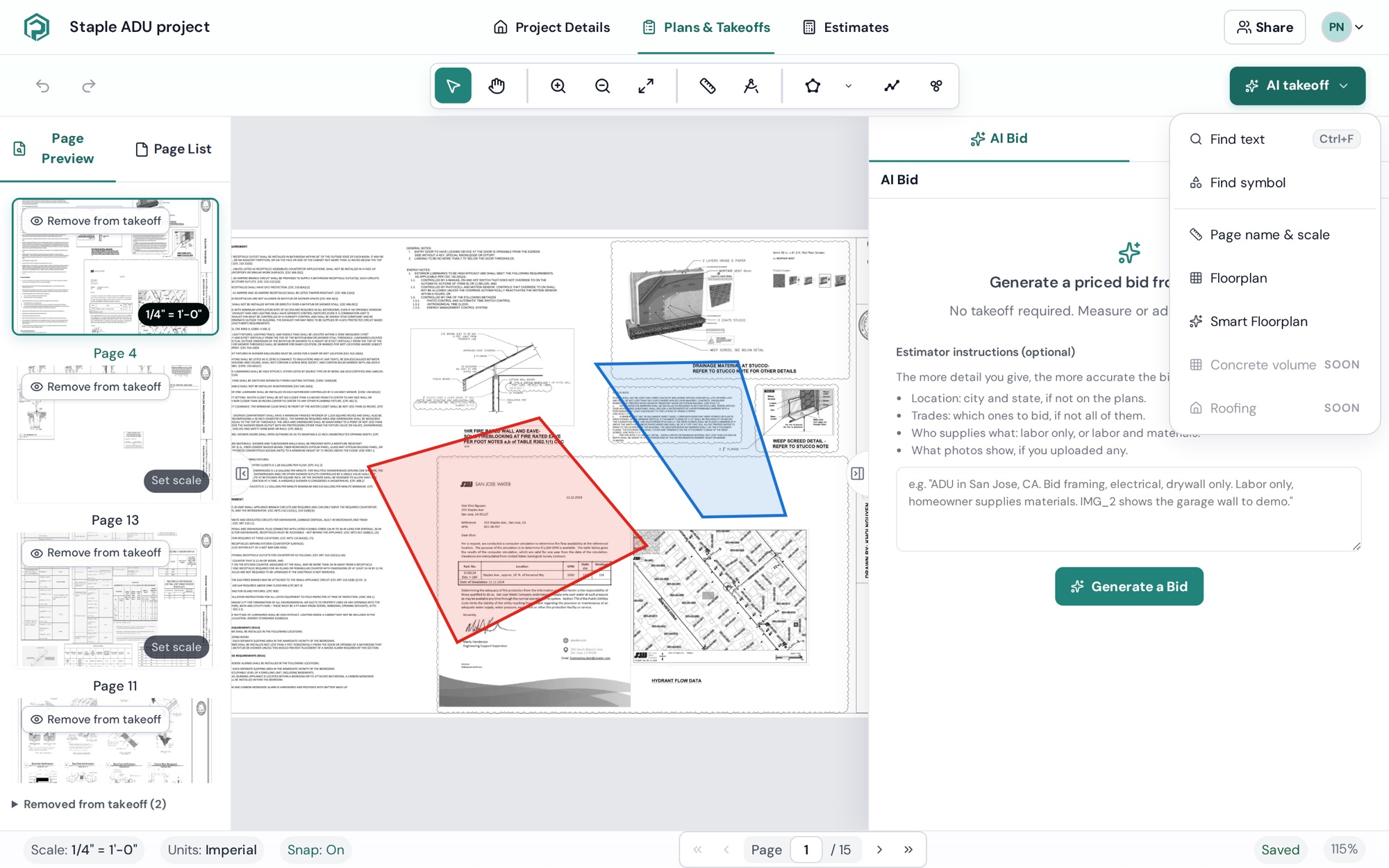
| Tool | What you get |
|---|---|
| AI navigation | Sheet names, a scale per page, clickable sheet references |
| AI floorplan and Smart Floorplan | Walls, rooms, doors and windows in a region you choose |
| Snap and line pick | Clicks that land on the drawing; takeoff straight from a line |
| Smart Area | A room's area from one click |
| Smart Edit | Add or remove part of an area with a click |
| Smart Linear | A whole line traced in one click |
| Smart Count · Text | Every match of a tag counted |
| Smart Count · Symbol and Smart Pattern | Every repeat of a symbol counted; every repeat of a pattern as areas |
| Joist Tool | Joists laid across an area at your spacing |
How a run works
The menu tools run on the server and report in a banner at the bottom of the canvas.
- Pick the tool. AI floorplan and Smart Floorplan ask you to drag a region first.
- The banner reads Starting detection..., then AI floorplan running with a percentage. Pause holds the queue, Resume carries on, Cancel stops it; anything already finished stays.
- At the end it reads AI floorplan complete · 12 components. Click Done.
Only one AI run goes at a time per project; otherwise you see Another AI assist is already running on this project. Wait for it to finish or stop it first. The Smart tools are different: they answer as you hover and click, with no banner and no queue.
Check what the AI drew
AI results land in the Takeoff tab as ordinary objects, so you review them the way you review your own work.
- Tick Confidence badges in the toolbar's Advanced menu. Each AI shape gets a badge such as AI-detected · 87% · door, coloured by tier: 80% and above, 50 to 79%, below 50%. Walk the low ones first.
- Click a shape to move its points, or right-click it for Subtract, New Section and Delete. Spot-check a length with Measure. See Edit takeoffs: reshape, add/remove points.
What it costs
AI takeoff is included in Plankore Pro. There is no credit counter or per-run charge in the app. Cost comes up in one place: if some pages haven't finished text recognition when you run AI navigation, the dialog offers to read them first and warns that running without waiting is less accurate, and it costs extra.
If something goes wrong
- Available on Plankore Pro. You are on Free Forever, or the trial has ended. See Manage your account and subscription.
- Pages are still being processed. Try again once processing finishes. Wait for the file's badge to reach Ready on Project Details.
- Could not start detection. Please try again in a moment. Retry; if it persists, reload the page.
- AI detection failed. Check your network connection and try again. If the problem continues, the ML service may be down. Retry once, then contact support with the project name and page number.
- A Smart tool says the sheet has no vector linework. The page is a scan or a photo; the Smart tools need a PDF exported from CAD. See Supported files and upload limits.
Still need help?
Email hello@plankore.ai and we'll reply within 48 hours. So we can find your work quickly, include the email you sign in with and the name of the project.