
Find text
Search every sheet for a word, sheet number or schedule name, jump between hits — and auto-count every occurrence of a label.
Find text lives at the top of the AI takeoff menu (⌘F / Ctrl+F). It works on every plan, Core included — it isn't an AI detection.
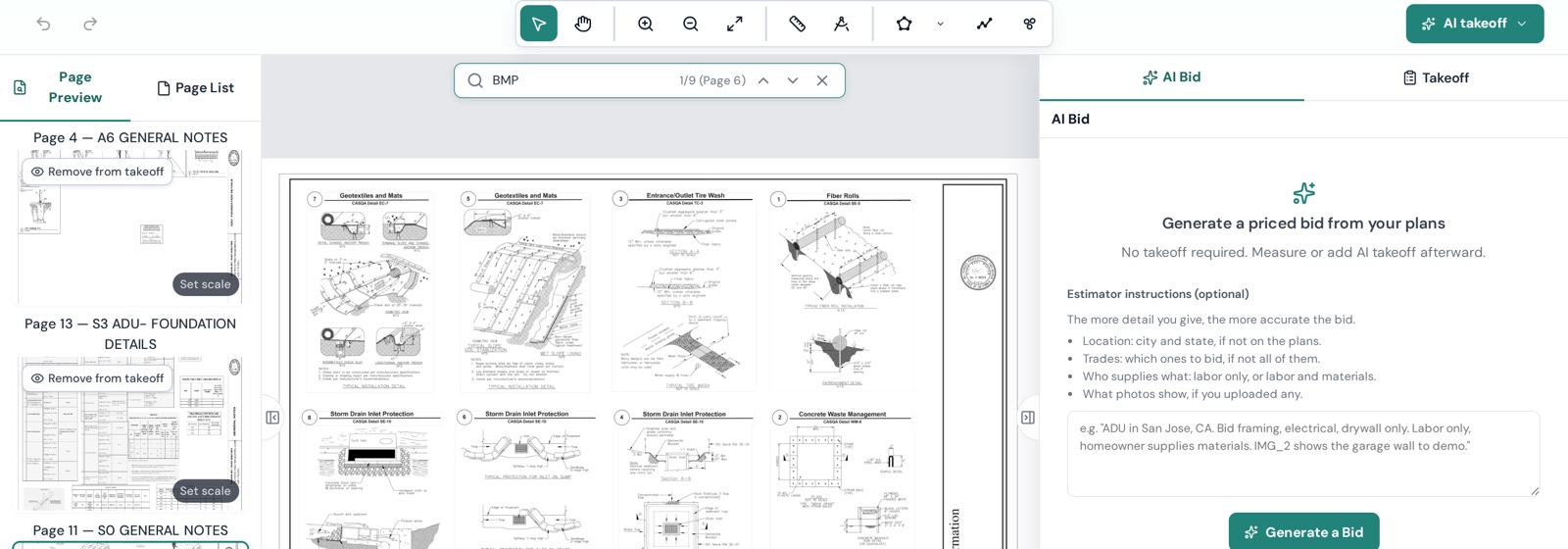
Search
- Open AI takeoff → Find text or press ⌘F / Ctrl+F.
- Type in Search all pages… — a sheet number (A-201), a schedule (DOOR SCHEDULE), a keyword (fire rated), a tag (W1).
- Use previous / next to step through hits; the canvas jumps to each match. "No matches found" means it isn't on any processed page.
You can also start a search from the drawing: with the Move tool, drag a box around some text and right-click → Find text. See Select an area on the sheet.
Auto count a label
Once you can find a tag, you can count it. Box the tag on the sheet, right-click → Auto count text → choose In a region…, On this page or On all pages. Every occurrence becomes one mark in a new Count object in the Takeoff tab — window and door tags, fixture types, keynote numbers.
Text needs OCR
Search relies on the text recognition (OCR) that runs after pages render. On a fresh upload give a big set a minute; if a page still returns nothing, it may be a low-contrast scan. Turn on OCR / Text in the toolbar's Advanced menu to see the recognized text boxes on the canvas.
Find text and Find symbol are exclusive — opening one closes the other.