
Build an estimate from your takeoff
How the Estimates table works — columns, waste, unit costs, markup, excluded objects, manual rows, and Excel/PDF export.
Open Estimates in the section nav. Every object from your takeoff appears as a row, grouped by CSI division.
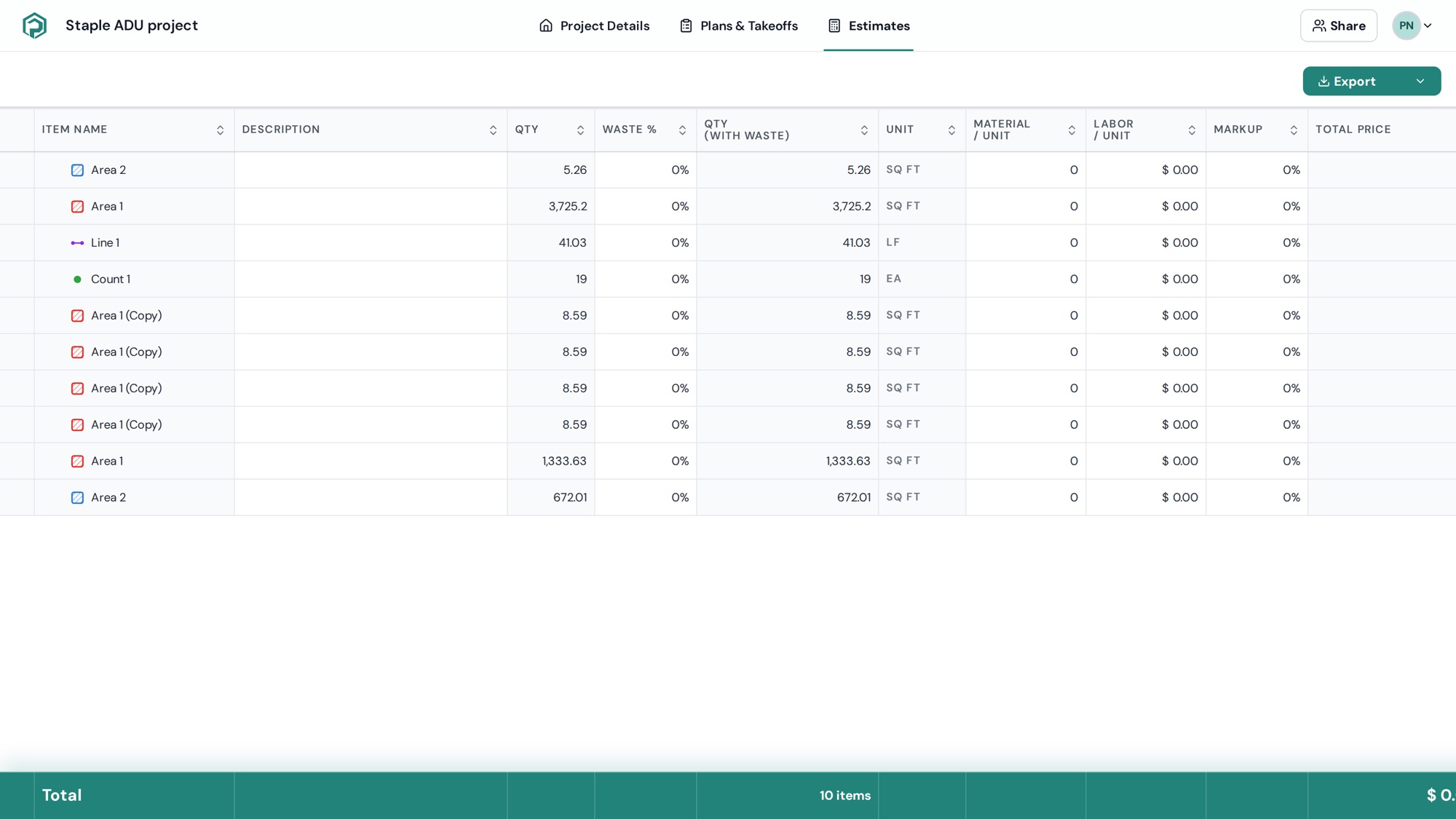
Columns
| Column | What it is |
|---|---|
| Item name / Description | From the object; edit here or in the Properties panel |
| Qty | Measured quantity from the takeoff (area, length or count) |
| Waste % | Added allowance — 10 = 10 % |
| Qty (with waste) | Qty × (1 + waste) |
| Unit | sq ft / ft / ea (or metric) |
| Material / unit, Labor / unit | Your unit costs |
| Markup | Percentage on top of material + labor |
| Total price | (Material + Labor) × Qty (with waste) × (1 + markup) |
Click a header to sort; drag a header edge to resize. The bottom Total row sums everything included.
Every row is traceable — click it and the canvas jumps to the measured shape, so you can verify a quantity before it goes into a bid.
Include / exclude objects
Untick the checkbox on a row to leave it out of the total (e.g. an "existing wall" you measured for reference). Excluded rows are hidden behind Show N excluded objects.
Manual rows
Need a line that isn't measured — permits, mobilization, an allowance? Add a Manual row, type the description, quantity, unit and costs. Remove one with Remove this row? from its menu.
Organize
- Drag rows to reorder inside a division.
- Right-click a row → Move to division to file it under a different CSI division.
Templates and assemblies
Instead of typing unit costs by hand, apply an assembly to an object — it fills inputs, formulas and pricing for you, and Sales Tax from Project settings applies project-wide. See Apply library templates and assemblies.
Export
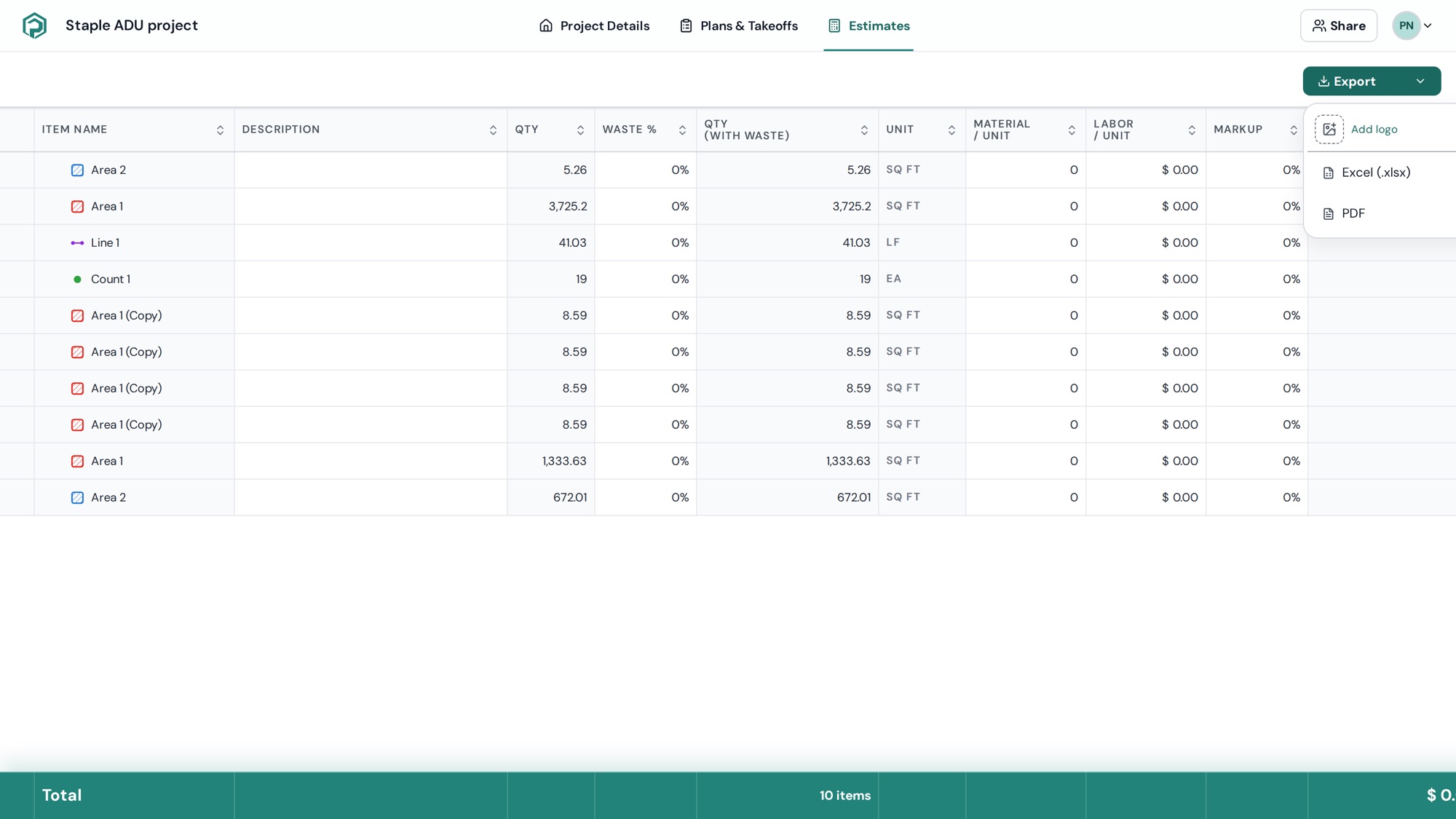
Click Export and choose Excel (.xlsx) or PDF. Add your company logo with the logo picker in the export menu — it appears on the PDF. While it builds you'll see Exporting…; if it fails ("Couldn't export the estimate. Please try again."), click Retry export.