
Organize pages with folders
Use the Page List to group sheets into folders, reorder them, rename them, and find them fast.
Large sets are easier to work with once sheets are grouped — by discipline (A / S / M / E), by building, or by bid package.
Open the Page List
In the left panel, switch from Page Preview to Page List. Every sheet appears as a row with its scale (or Set scale); folders appear above the pages they contain, and objects nest under their page.
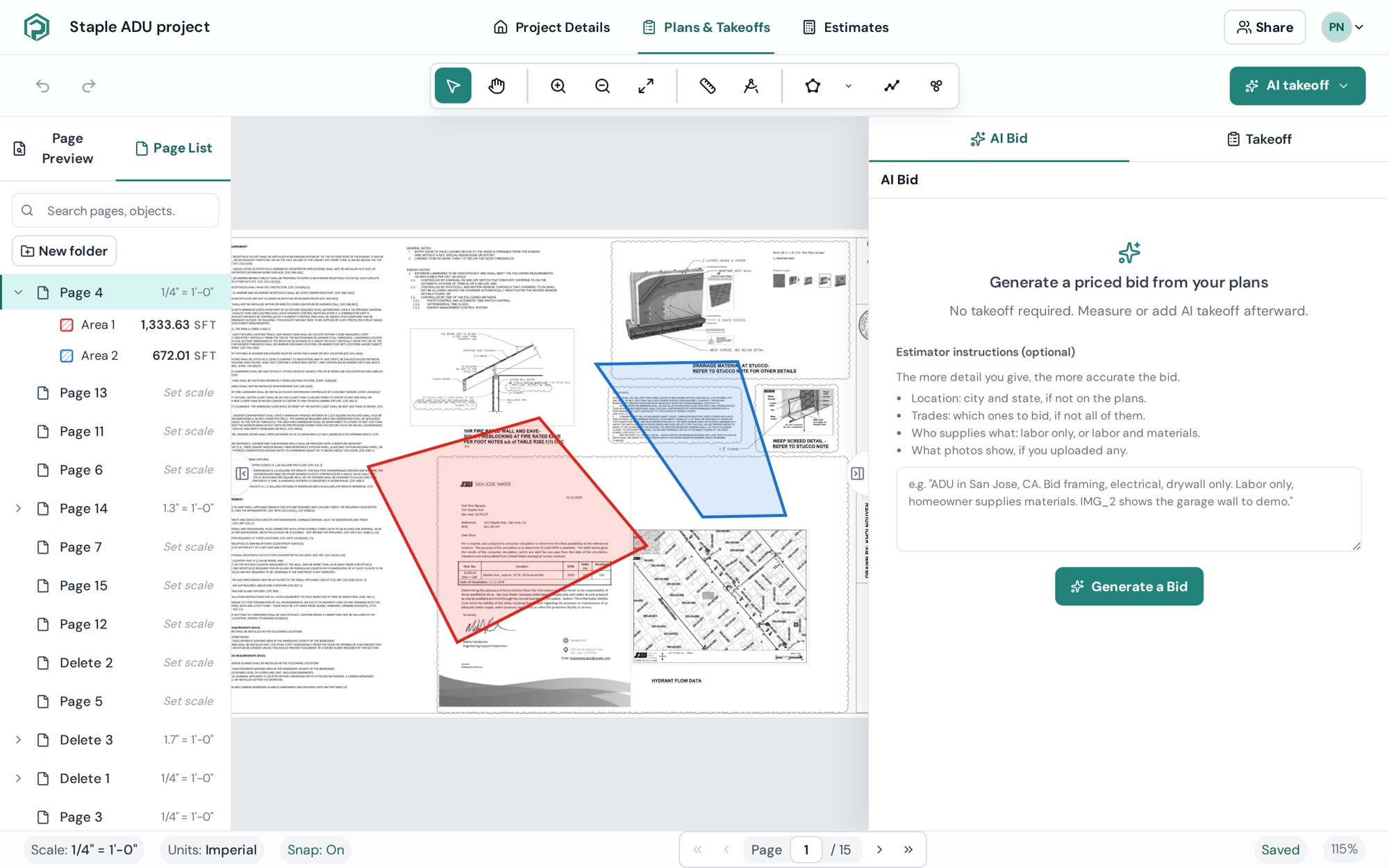
Create and manage folders
- Right-click in the list (or use the folder menu) → New folder. It's created as New folder — type a name and press Enter.
- Rename a folder from its menu.
- Move to folder moves the selected page(s). Drag also works.
- Delete folder removes the folder and every page inside it and its subfolders — permanently. Read the confirmation before clicking Delete permanently.
Select several pages at once
- Cmd/Ctrl + click to add or remove single pages.
- Shift + click to select a contiguous range.
- Then drag them together, Move N pages to folder, or Remove N pages from takeoff.
Multi-page drag reorders pages inside the same folder/page. Moving pages between folders uses Move to folder.
Rename pages
Click a page name in Page Preview to rename it inline. On Pro the AI fills sheet names automatically from the title block — you can always overwrite them.
Find a page
Type in Search pages, objects… at the top of the tree. Matches filter the list; clear the box to see everything again. Long lists load in chunks — click Load more at the bottom.
Copy or jump
From a page's menu: Copy page duplicates it (with a blank takeoff); Go to page opens it on the canvas.