
Read sheet names and scale
Run Page name & scale to name every sheet from its title block and get a proposed scale per page — then apply and verify it.
On a 60-sheet set, naming pages and setting scales by hand is the slow part. Page name & scale does it in one run.
Run it
- Open the AI takeoff menu → Page name & scale. It runs across the whole project.
- Thumbnails show AI scanning… while pages are read. You can keep measuring on pages that are done.
- When it finishes, sheet names appear under each thumbnail (e.g. A-101 First Floor Plan) and pages with a detected scale show a scale chip.

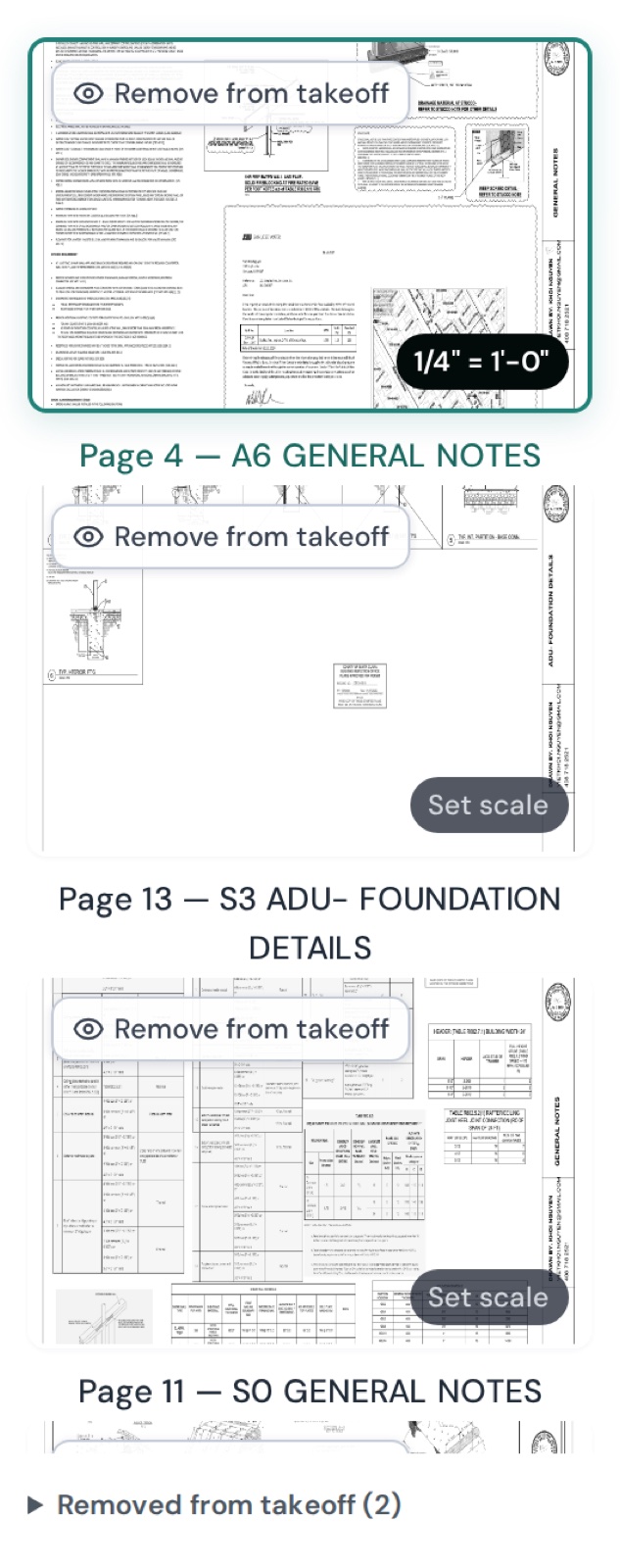
If it's already running you'll see Name & scale is already running — wait, or Stop that run to start over. If OCR is paused: OCR is paused → Resume OCR, then detect.
Apply the AI-detected scale — deliberately
The AI proposes a scale; it doesn't apply it silently. On a page with a proposal:
- Hover the chip — AI-detected scale — click Apply to calibrate.
- Click Apply. The AI-Detected Scale dialog opens.
- Tick "I understand and will verify it before taking measurements." and confirm.
Verify it (30 seconds, every time)
Take Measure (M), click the two ends of a printed dimension, and compare. Off by more than a hair? Recalibrate manually — see Set the page scale. Common reasons the printed scale is wrong: the sheet was printed to a smaller paper size, or the title block says one scale and a detail on the same sheet is drawn at another.