
Remove/add pages from a takeoff
Three ways to make pages disappear — hide, remove from takeoff, delete — and which ones you can undo.
Cover sheets, specs, details you don't bid — most sets have pages you don't want in the way. Plankore has three levels, and mixing them up is how people "lose" pages. Use the mildest one that does the job.
| Level | Where | Undo? |
|---|---|---|
| Hide a file's pages | Project Details → Takeoff files → checkbox on the file row | Yes — tick it again |
| Remove from takeoff | Page Preview / Page List, per page or in bulk | Yes — Restore |
| Remove permanently / Delete file | Confirmation dialog / Takeoff files → trash icon | No — pages and their measurements are gone |
Remove pages from the takeoff (reversible)
- One page: in Page Preview or Page List, click Remove from takeoff on the page.
- Several: select them (Cmd/Ctrl-click, Shift-click for a range) → Remove N pages from takeoff.
Removed pages leave the list and stop counting toward the takeoff. They are not deleted — they collect under Removed from takeoff (N) at the bottom of the left panel.
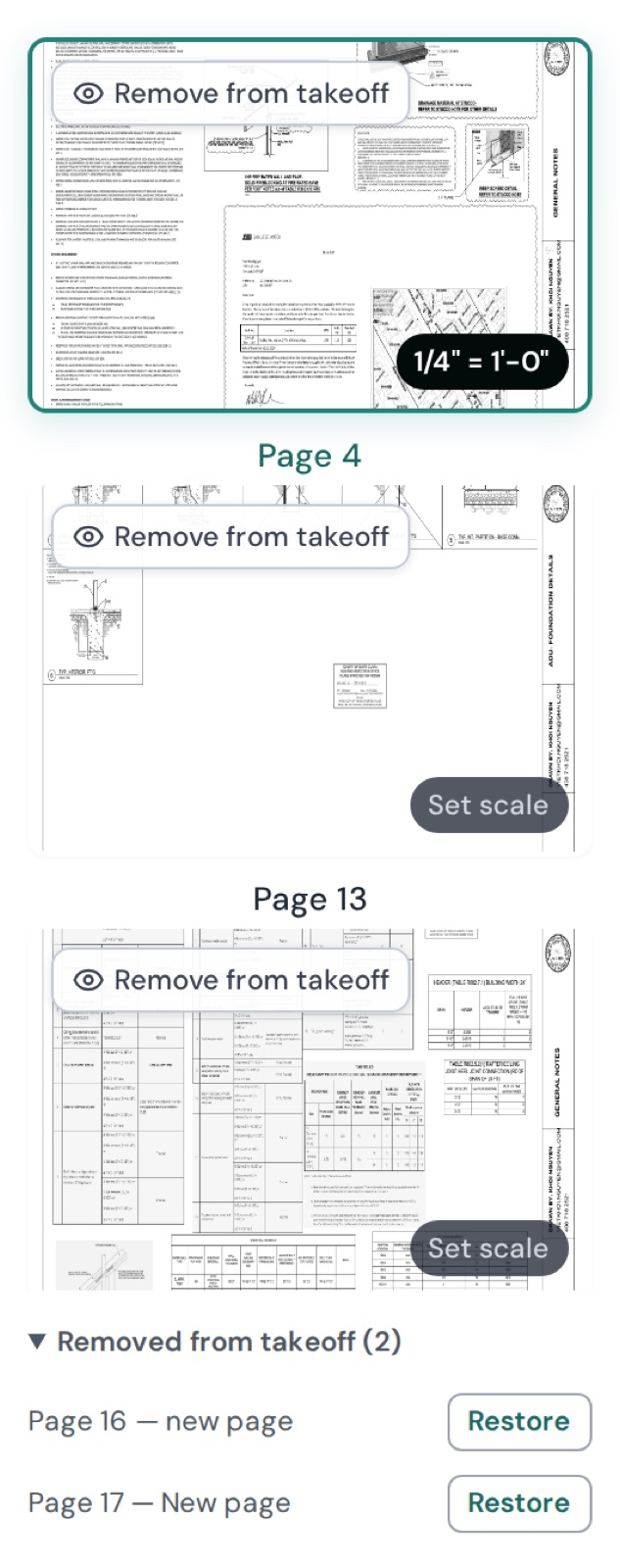
Get them back
Expand Removed from takeoff (N) → click Restore (or Restore to takeoff on the page). The page returns with any measurements it had.
Hide instead of remove
If you just want a whole file out of sight while you work — the specs PDF, say — untick its checkbox in Project Details → Takeoff files. Its pages disappear from Page Preview and Page List; tick to bring them back. A half-filled box means only some of that file's pages are shown. See Takeoff files.
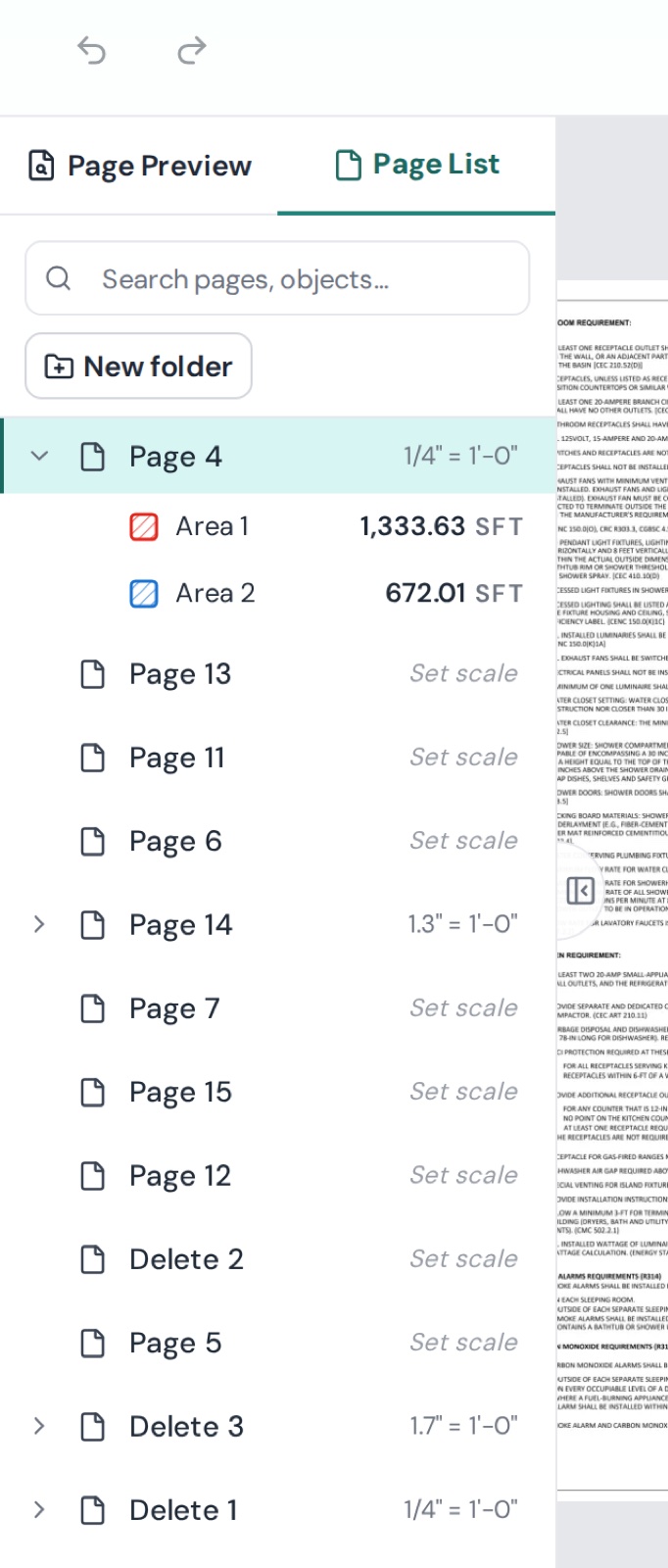
Delete for good
Two actions are permanent — the confirmation dialog says so:
- Bulk removal offers Remove permanently — pages and their takeoffs are deleted.
- Delete file on a Takeoff files row removes the file, every page in it, and any takeoff drawn on those pages.