
Share a project and manage members
Invite teammates by email, choose Can edit or View only, see who's in the project, and revoke access.
Invite someone
- Open the project and click Share (top right) to open Share project.
- Type their Email address, choose Can edit or View only, and click Invite — one person at a time.
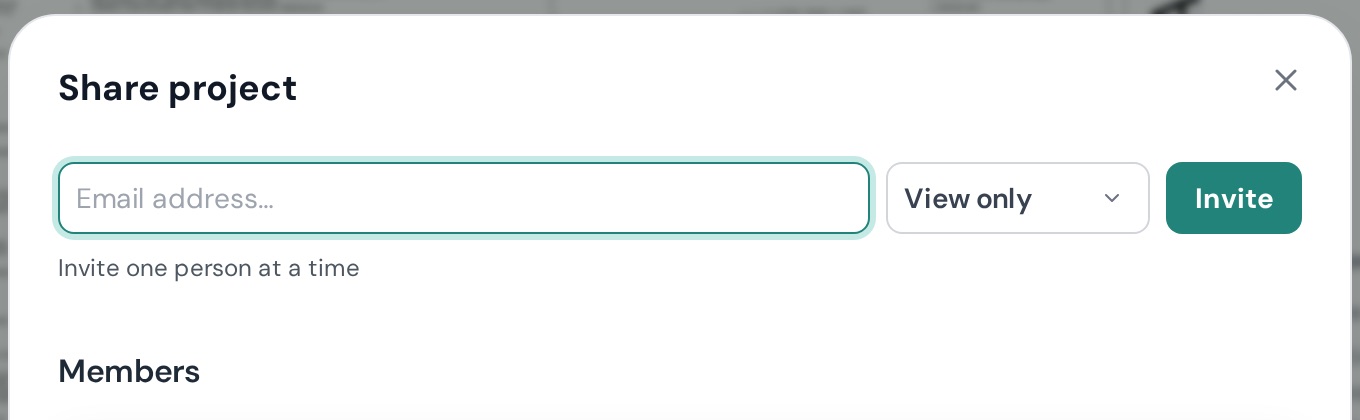 3. They get an email with an Accept project invitation link. Until they accept, they're listed under Pending invitations.
You'll see "Invitation sent to {email}." If it says "We couldn't send that invite.", check the address and try again.
Roles
| Role | Can |
|---|---|
| Owner | Everything, including sharing, billing-gated features, deleting the project |
| Editor (Can edit) | Draw, rename, price, upload, export |
| Viewer (View only) | Look, follow, export — but not change anything. Viewers see a View only badge; trying to edit shows "editing requires editor access from the project owner." |
Core includes 3 editors and unlimited viewers per project.
Change or revoke access
In the Members panel, change a member's role with the Can edit / View only select, or remove them (Revoke access?). Cancel an unaccepted invite under Pending invitations (Cancel invitation?).
Working at the same time
Members currently in the project show as avatars in the header. Click one to follow them — you'll see "Following {name}" and your view tracks theirs; Stop following to take back control. Changes save automatically and appear for everyone (Canvas updated).
Shared with me
Projects others invited you to appear on your Dashboard under Shared with me, with your role and "Owner: X · Invited by Y" on the card.