
Select an area on the sheet — copy as text or image, find, auto count
Drag a box over any part of a drawing with the Move tool, then copy its text or image, search for it, or count every occurrence.
Updated Aug 16, 20262 min read
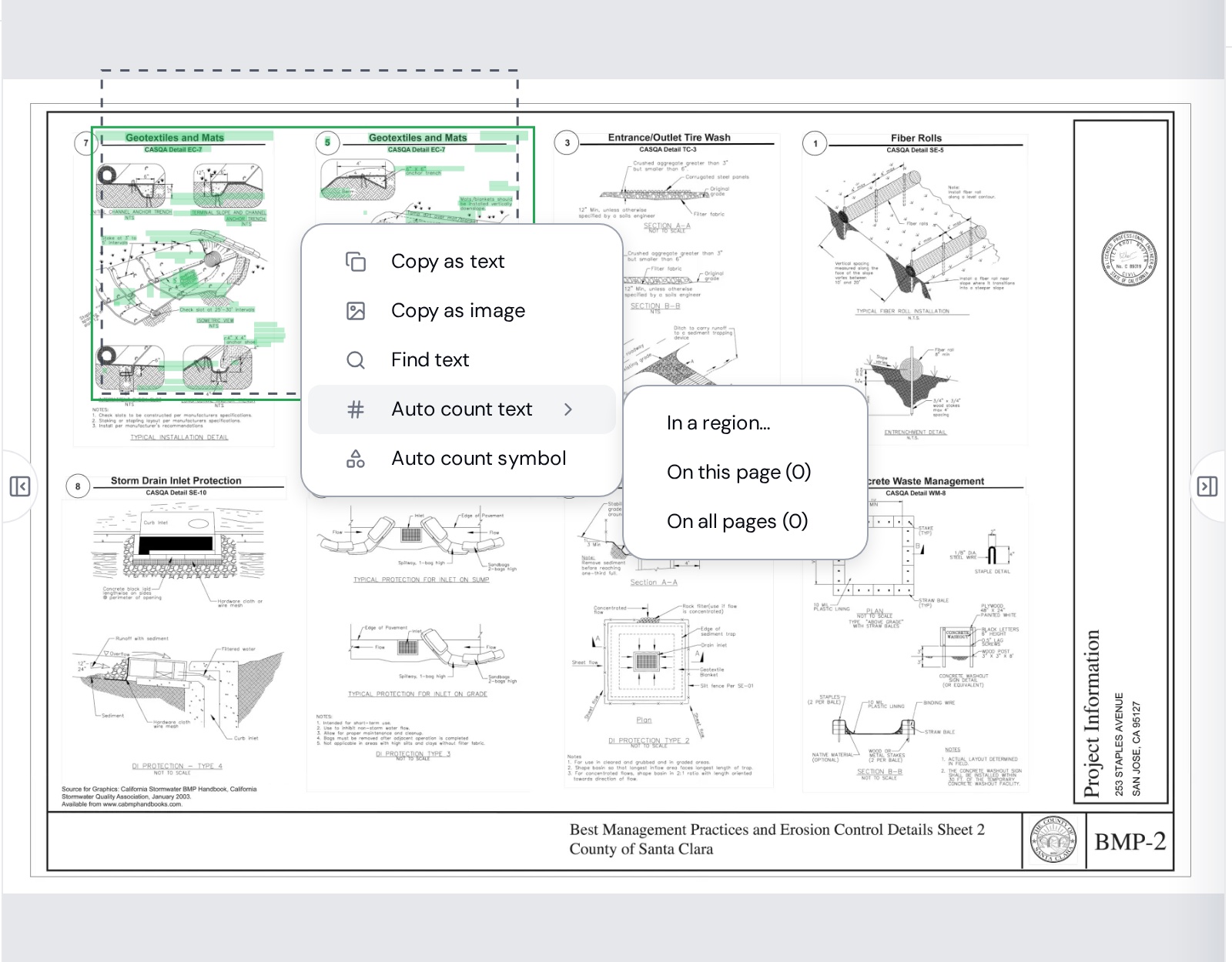
With the Move (V) tool active, drag a rectangle over part of a sheet — a note, a schedule, a symbol, a tag like W1. Right-click the selection (or use the small action bar that appears) and you get a menu of things to do with that area:
| Action | What it does |
|---|---|
| Copy as text | Puts the OCR text inside the box on your clipboard — paste a note or schedule row into an email or spreadsheet. Only offered when the area contains recognized text. |
| Copy as image | Copies the boxed region as a PNG ("Copied the area as an image") — drop a detail into a bid PDF or a message. |
| Find text | Searches the sheets for the text you boxed — see Find text. |
| Auto count text → In a region… / On this page / On all pages | Finds every occurrence of that label and turns them into a Count object — e.g. count every W1 window tag across the set in one click. |
| Auto count symbol | Uses the boxed linework as a symbol template and counts matching symbols — see Find symbol. |
Tips
- Text actions need OCR. On a fresh upload, wait for the file to reach Ready; if the menu doesn't offer text options, the area has no recognized text yet (or it's a scanned image with poor contrast).
- Auto count text results land in the Takeoff tab as a Count object with the label as its name — review before pricing; a tag that also appears in a schedule table will be counted there too unless you count In a region….
- Press Esc to dismiss the selection.