
Takeoff files — add, retry, download, delete
Manage the plan files that become measurable pages — from Project Details → Takeoff files.
Updated Aug 16, 20262 min read
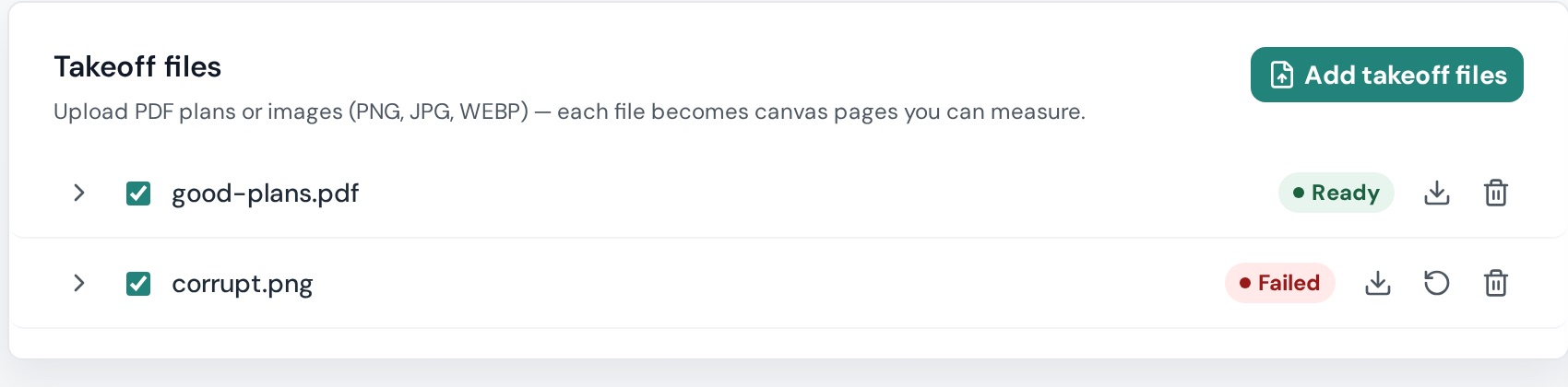
Project Details → Takeoff files — "Upload PDF plans or images (PNG, JPG, WEBP) — each file becomes canvas pages you can measure."
Add files to an existing project
Click Add takeoff files and choose .pdf, .png, .jpg, .jpeg or .webp (several at once is fine). New pages appear in the left panel as they render. Limits are the same as at project creation — see Supported files and upload limits.
Read a file row
- Expand (chevron) shows the pages inside the file.
- The checkbox is page visibility on the canvas — untick to hide every page from that file in the Page Preview/List, tick to show; a half-filled box means only some pages are shown. Hiding is not deleting — for the difference between hide, remove and delete see Remove pages from a takeoff.
- Status badge: Validating → Queued → Uploading → Finalizing → Rendering → OCR → Processing → Ready, or Failed. While in flight you'll see Preparing upload, Processing pages, N of M pages ready, Waiting to process.
- Icons: Download original · Retry processing (only on Failed) · Delete file.
Retry, download, delete
- Retry processing re-runs the pipeline for that file. If it fails again: Download original, check the file opens and isn't password-protected, then Delete file and re-upload a clean copy.
- Delete file removes the file and its pages and any takeoff drawn on them. Confirm before you click.
Errors: "Could not retry {name}.", "Could not download {name}.", "Could not update visibility for: {names}.", "Could not load takeoff files."
Failed uploads at project creation
Failed files from the wizard show here too, so you can retry or remove them after the fact. See Upload errors and how to fix them.