
Supported files and upload limits
Which file types Plankore accepts, size and page limits, and what happens during processing.
File types
| Where | Accepted |
|---|---|
| New project — plan files | .pdf .png .jpg .jpeg .webp .tif .tiff .heic .heif |
| Add takeoff files to an existing project | .pdf .png .jpg .jpeg .webp |
| Related documents (specs, schedules, models) | .pdf .png .jpg .jpeg .webp .xlsx .docx .dwg .dxf |
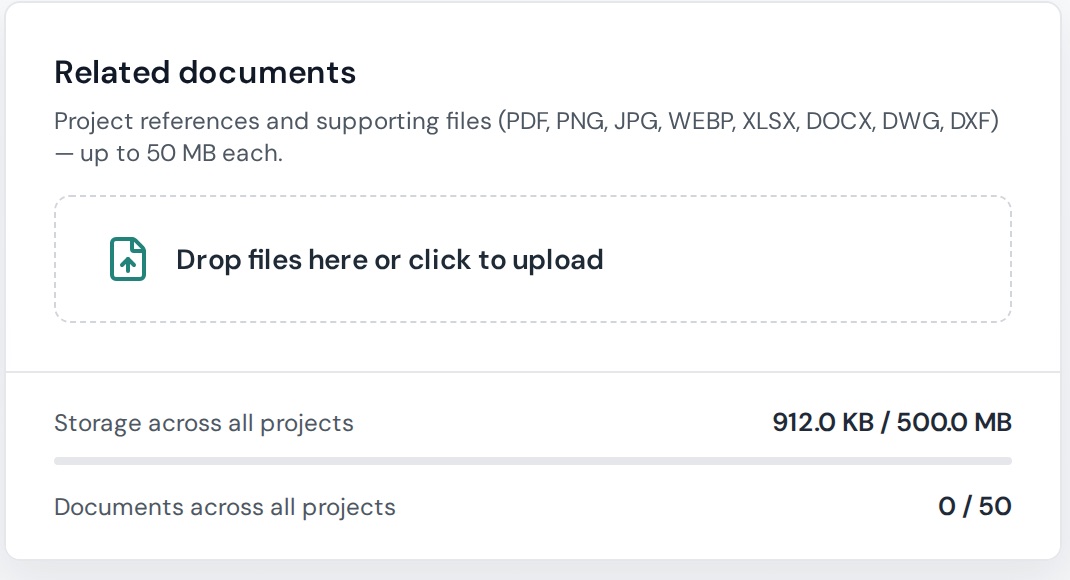
Related documents are stored for reference and download (up to 50 MB each); they aren't turned into takeoff pages.
Limits
- PDF: up to 500 MB and 500 pages per file.
- Images: up to 50 MB each.
- Per project: an account-level page limit. Over it you'll see "…exceeds the N-page project limit. Email hello@plankore.ai to raise your limit."
- Documents: storage (500 MB) and document count (50) are shared across all your projects — the current usage shows under Related documents. When full: "Delete an older document to add another."
If a PDF is too big or too long, split it into smaller PDFs and upload them together — a project can hold many files.
What processing looks like
Each file moves through Validating → Queued → Uploading → Finalizing → Rendering → OCR → Processing → Ready. Pages become usable as soon as they render; OCR (text recognition, used by Find text and the AI) can keep running after that.
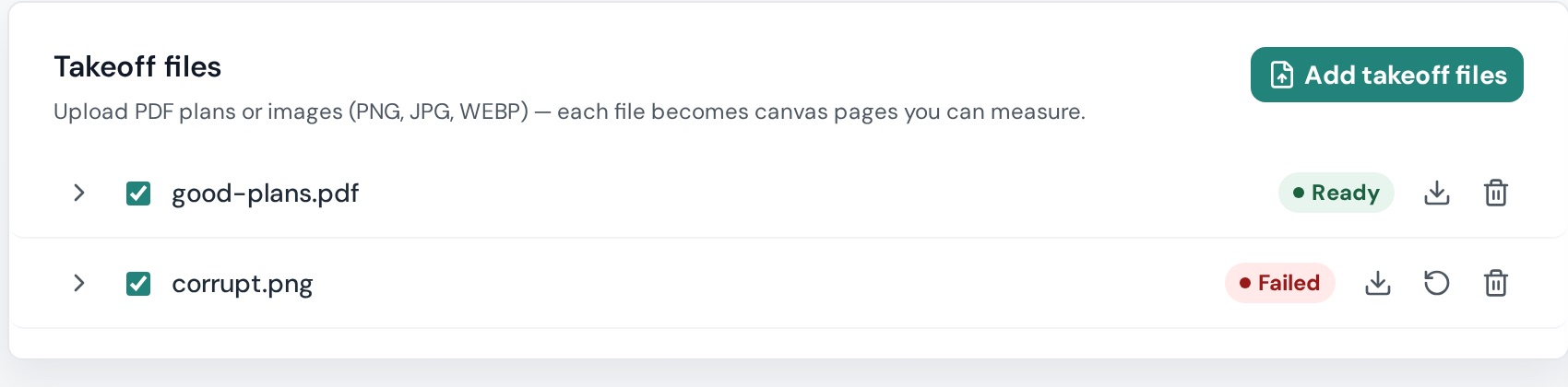
If a file ends in Failed, open Project Details → Takeoff files and use the retry, download or delete icons on its row.
 A single page can also fail to render — hover the thumbnail and Tap to retry.
Password-protected, scanned, and odd PDFs
- Password-protected PDFs are rejected: remove the password and re-upload.
- Scanned PDFs work — text search relies on OCR, which may take longer.
- Vector PDFs exported straight from CAD give the sharpest rendering and the best AI results.
Something else? See Upload errors and how to fix them.