
Smart Count: find symbols with AI
Box one example of a symbol on a vector PDF, refine which lines count, and Plankore finds every match on the page, a region or all pages, then counts the ones you tick.
For things drawn as symbols rather than words, such as receptacles, sprinkler heads, a fixture type or a keynote bubble, use Smart Count · Symbol. You box one clean example and Plankore finds the rest by the lines that make it up.
It needs a vector PDF. The search matches linework, and a scanned sheet has none. If your sheets are scans, count the tag next to the symbol instead with Smart Count: find text.
Count a symbol
- In the toolbar's Smart tools group, click the chevron beside Smart Count (Choose what to count) and choose Symbol. The button remembers your choice for next time.
- The banner reads Smart Count · Symbol · Drag a region containing the symbol. Drag a box around one symbol, as tight as you can.
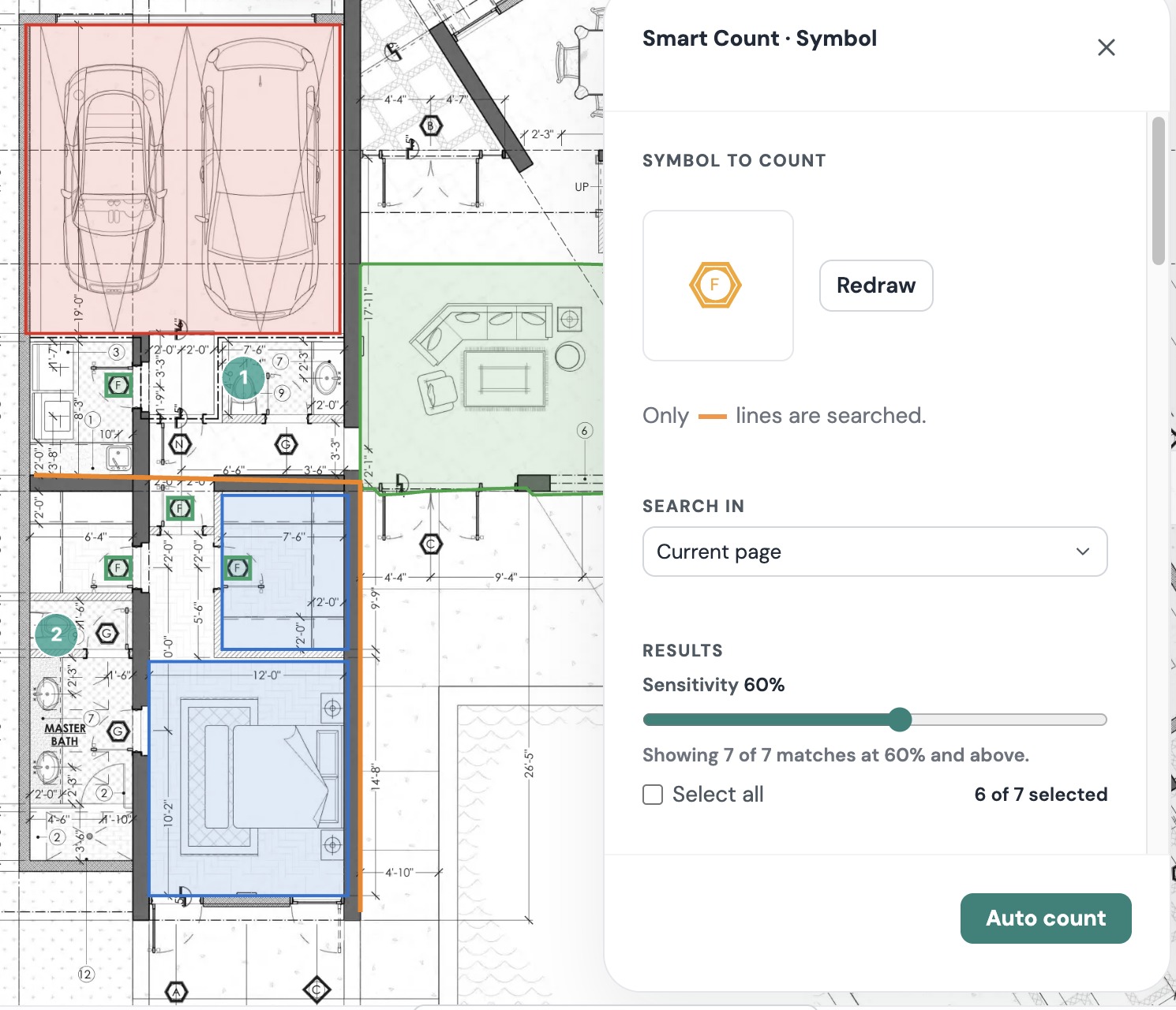
- The Smart Count · Symbol panel opens over the canvas with your box under Symbol to count. It reads Reading the sheet's linework… for a moment, then the lines the box picked up are highlighted on the sheet. Orange lines are part of the symbol; the panel reminds you that only orange lines are searched.
- Refine the template. The tip above the box reads Click to add/drop a line. ⌘ + drag to drop several lines. (Ctrl on Windows). Drop leader lines, neighbouring text and anything that isn't the symbol itself. Click Redraw to start again with a different box.
- Under Search in, choose Current page, All pages or Select a region. For a region, drag a box on the sheet; the panel then reads Drag a new region to change the search area.
- Click Search. The panel reads Searching page 1 of 4 · 35% as it goes. Every match appears in the list with its score and is outlined on the sheet.
- Use the Sensitivity slider to hide weaker matches. It starts at 60%, and the caption reads Showing 14 of 19 matches at 60% and above. Untick any false hits, or double-click a match on the sheet. Select all and the 14 of 19 selected count keep track.
- Click Auto count. The New Count (14) popup opens, named Symbol count by default. Name it, choose its class and colour, and save.
The result is one count object with a marker on each match, ready to price like any other count.
From a box on the sheet
With Move, drag a box around a symbol and right-click inside it. The menu offers Smart Count · Symbol at the top; choosing it opens the panel with your box as the template. The same menu offers Smart Pattern, which finds repeats of a hatch or tile pattern and makes areas of them. See Smart Area.
Tips
- Box less, not more. The symbol only, not its tag or leader.
- If matches include look-alikes, raise Sensitivity. If it misses some, lower it a little or check that a line you dropped wasn't part of the symbol.
- Matches are found by shape, so a symbol drawn rotated or mirrored still counts.
If something goes wrong
- We can't detect a symbol in this area. Try a clear, distinctive symbol, this works on original PDFs, not scans. The box caught too little linework, or a single straight line. Box a symbol with a few lines in it, or the sheet is a scan.
- No matches. Try lowering the sensitivity, or boxing more of the symbol. Drag Sensitivity down, or redraw the box so the whole symbol is inside it.
- Could not read this sheet's linework. Try again. The linework didn't load. Click Redraw and box the symbol again.
- Symbol search could not be started. Check your connection and click Search again. If it keeps failing, contact support with the project name and page number.
- Too many matches on a busy sheet. Search Select a region instead of the whole page, or raise Sensitivity before you tick anything.
Still need help?
Email hello@plankore.ai and we'll reply within 48 hours. So we can find your work quickly, include the email you sign in with and the name of the project.