
Edit takeoffs: add and subtract sections
Add another section to an object you already measured, or cut an opening out of an area.
Add a section to an object
Use New Section when you forgot a room, or when the same material shows up again later in the set. The new shapes join the existing object, so its total just grows.
- Right-click a shape that belongs to the object and choose New Section. You can also select the shape and press N, or right-click the object in the Takeoff panel.
- The right tool turns on, already set to that object's color. There's no popup.
- Draw as many shapes as you need. Each one is added as a section.
- Press Escape when you're done.
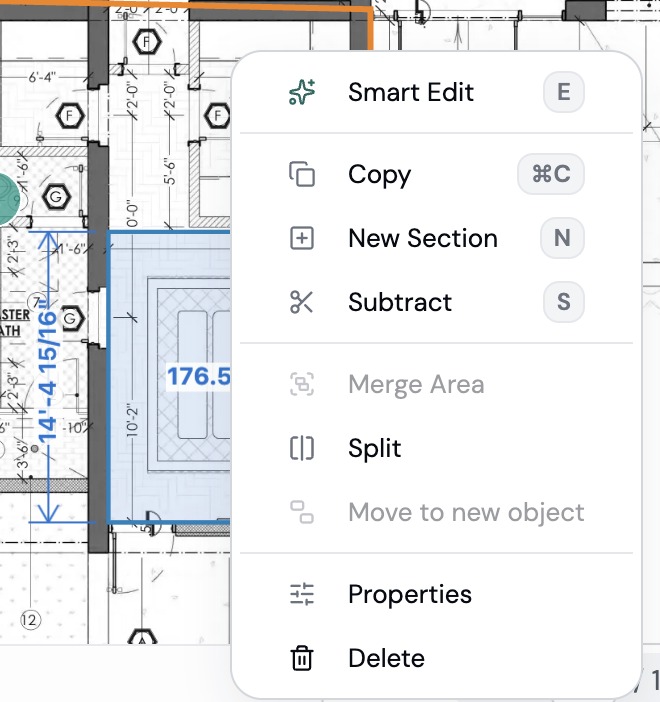
If the object is on a different page, Plankore takes you to that page first.
Subtract an opening from an area
Use Subtract for stair openings, columns, shafts or anything else inside an area that shouldn't be counted.
- Right-click the area and choose Subtract, or select it and press S.
- A hint appears at the top: "Draw over the section to cut out".
- Click points around the opening and finish the shape, like drawing an area. Press R first if a rectangle is easier.
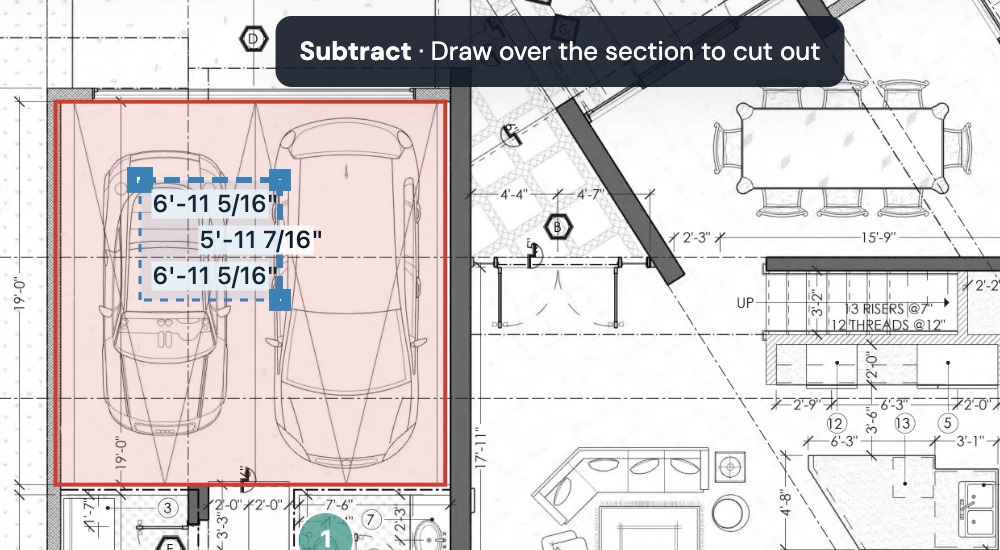
The part you drew becomes a hole in the area, and the area's total goes down. You're back on Move afterwards.
Subtract only works on areas. If what you draw doesn't overlap the area at all, nothing is cut out.
Still need help?
Email hello@plankore.ai and we'll reply within 48 hours. So we can find your work quickly, include the email you sign in with and the name of the project.