
Takeoff objects: area, linear and count
When to use Area, Rectangle, Linear and Count, how to draw with each one, and where the quantities show up.
Each tool opens a short popup first, where you name what you're measuring. How that works, and how to finish a shape, is in Draw a takeoff: objects and sections.
Area (A)
Use it for floors, slabs, roofs, paint and anything else priced by the square foot or square meter.
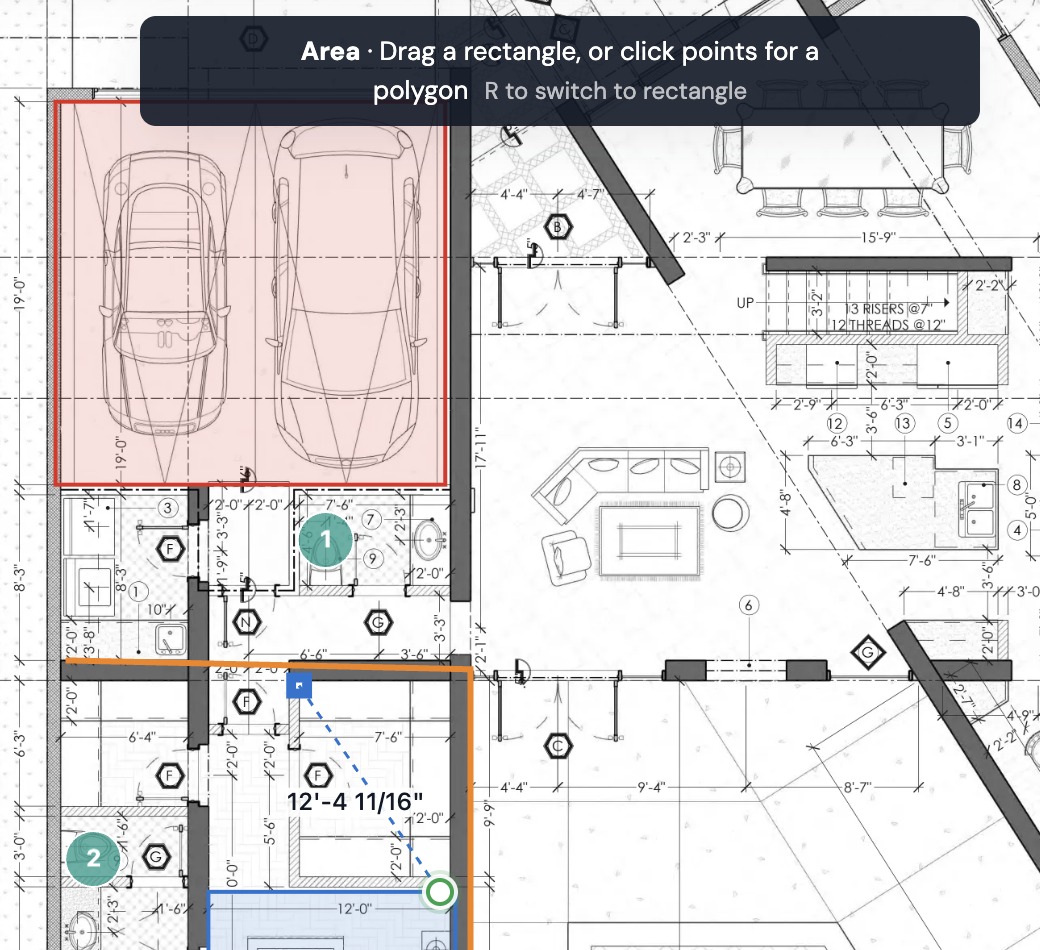
Click each corner of the space. Double-click, press Enter, or click the first point again to close the shape. While you draw, the label next to your cursor shows the area so far.
You can also drag from an empty spot to make a rectangle in one motion.
Rectangle (R)
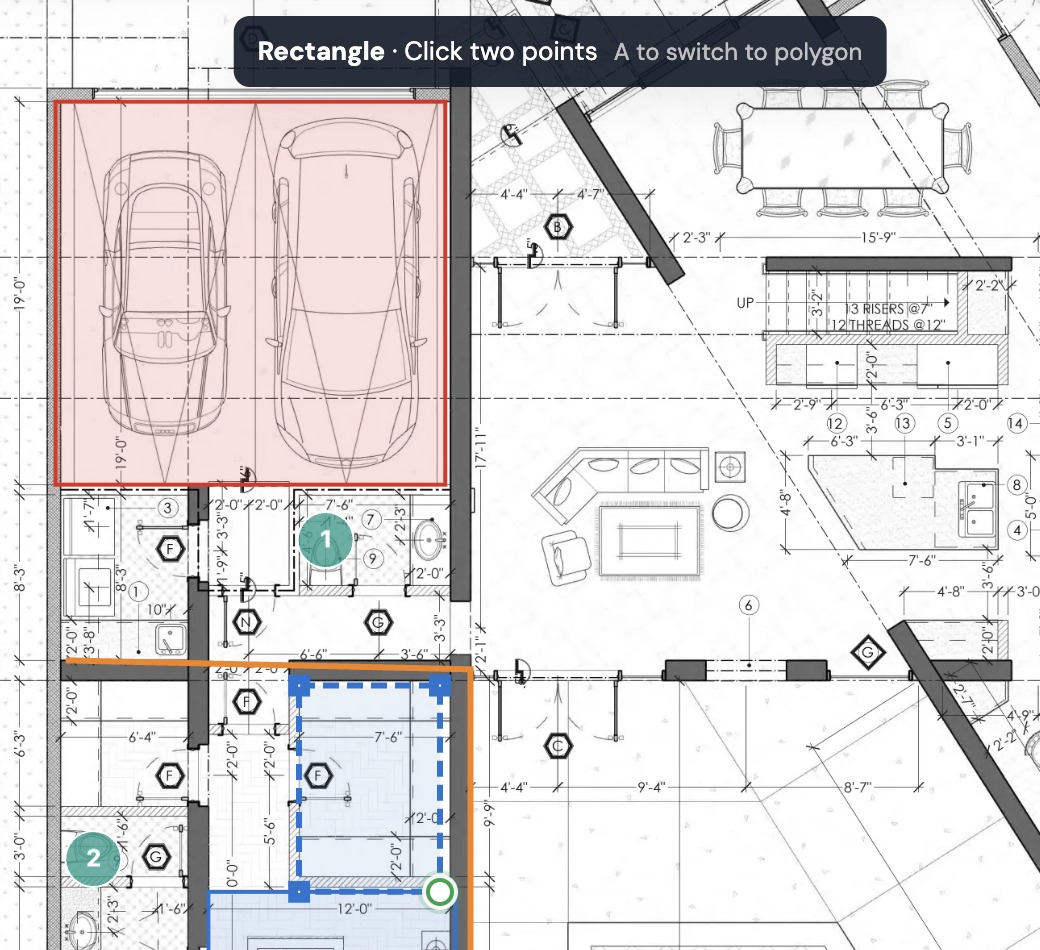
Use it for rooms and slabs with square corners. Click one corner, then the opposite corner. The label shows width x height = area.
Rectangle and Area share one button. Press R or A while drawing to switch between them, and you stay on the same object.
Linear (L)
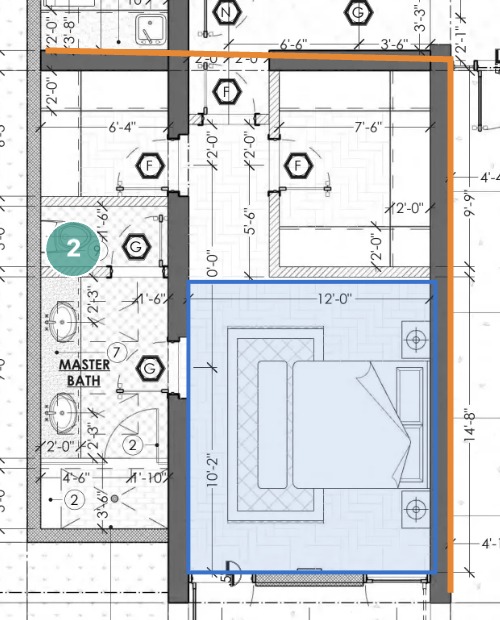
Use it for walls, base and trim, pipe, conduit, fence and curb, anything priced by the foot or meter.
Click along the run, then double-click or press Enter to finish. The label shows the length as you go.
Count (C)
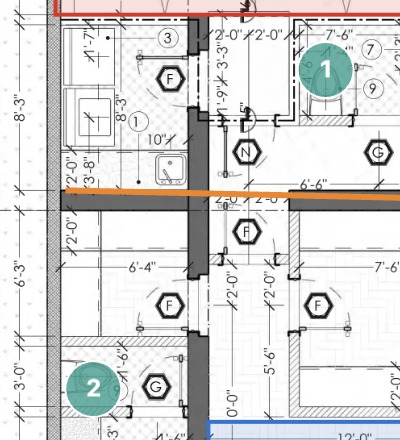
Use it for doors, windows, outlets, fixtures and equipment, anything priced each.
Click once on every item. Each click places a numbered marker. Press Enter or double-click when you're done with the batch. Count works even if the page has no scale.
Draw straight and accurate
- Orthogonal: hold Shift to lock a line to horizontal or vertical. Press O, or click Orthogonal in the control bar, to keep it on.
- Snap: clicks snap to the lines on the plan when Snap is on. Press F to switch it. Needs Plankore Pro.
- Pan while drawing: hold Space and drag. You stay in the tool.
More on these in Control bar: units, orthogonal, highlights, snap.
Where the quantities show up
Every object appears in the Takeoff panel on the right with its total: SFT for areas, FT for lengths and EA for counts, or square meters and meters on a metric project. The same totals flow into Estimates.
Still need help?
Email hello@plankore.ai and we'll reply within 48 hours. So we can find your work quickly, include the email you sign in with and the name of the project.