
Snapping and trace-free takeoff
Turn Snap on so your clicks land on the drawing's own lines, and pick a line straight off the plan to make a count, a length or a measurement without tracing it.
A plan exported from CAD still has its lines in it. Plankore reads that linework and uses it in two ways: Snap pulls your clicks onto it while you draw, and in Move mode you can pick a line and turn it into a takeoff object without drawing anything at all. That second part is what we mean by trace-free takeoff.
Both need a vector PDF. A scanned sheet or a photo has no lines to read.
Snap
The Snap pill sits at the right end of the control bar in Plans & Takeoffs. It reads Snap: On or Snap: Off. Click it, or press F, to switch. On Plankore Pro every drawing session starts with Snap on.
With Snap on, as you move the cursor near something snappable a small dot appears where the click will land. It looks the same whatever it's snapping to. Snap targets, in order of priority:
- Corners of shapes you've drawn, and corners of the plan's own lines. Corners on the drawing use a tighter reach than your own, so you can still snap along a wall that's made of many short segments.
- Midpoints of your own edges.
- Points where two lines cross, including the plan's lines.
- Anywhere along a line.
Snap works while you draw an area, a line or a count, while you move a point of a selected shape, and for every two-click line on the canvas, such as splitting a section or cutting joists.
Pick a line instead of tracing it
- Choose Move in the toolbar.
- Hover any line of the drawing. It lights up yellow. This works anywhere on the page, not just inside a selection box.
- Click it. The line turns green to show it's picked.
- Right-click it and choose one of:
- Create Count: one count marker on the line.
- Create Linear: a linear object the exact length of the line.
- Create Measurement: a measurement of the line, for checking a dimension.
- The New Count or New Linear popup opens. Name it, pick its class and colour, and save.
Create Linear and Create Measurement are greyed out with Set the page scale first until the page has a scale. See AI navigation or Set the page scale.
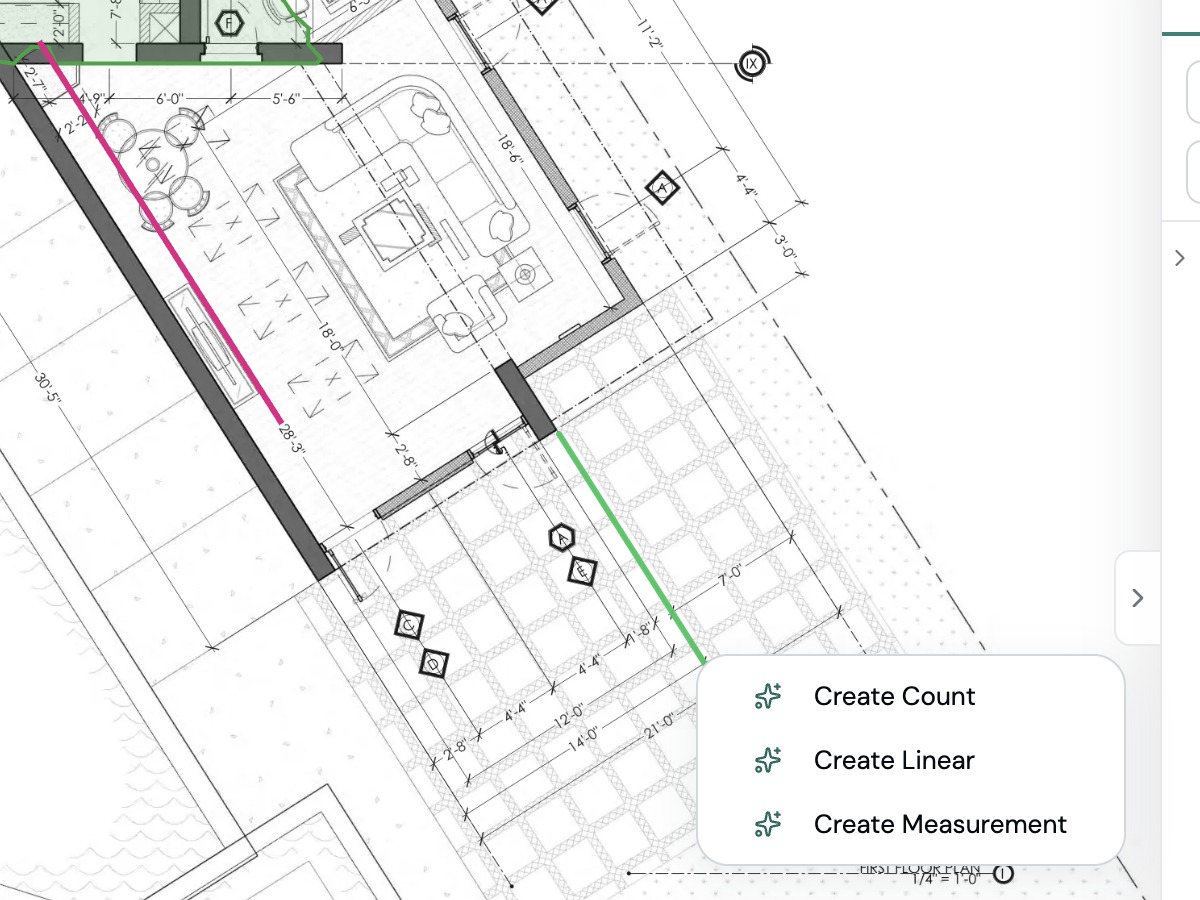
The hover and pick highlight are free on every plan. Only the three create actions need Plankore Pro.
When you want more than one line
Picking one line at a time suits a check or a single dimension. For a run of walls, use Smart Linear: each click traces a whole line as a new section of the same object. For a room, use Smart Area: one click fills the room from its walls. See Smart Linear and Smart Area.
If something goes wrong
- Nothing lights up when I hover. The page is a scan or an image, or its linework is still loading. Give a freshly opened page a moment and try again. If it never lights up, the file has no vector lines. See Supported files and upload limits.
- Snap grabs the wrong thing. Zoom in. Snap works in screen distance, so a closer view separates nearby corners. Or press F to switch it off for one click and back on after.
- The snap dot appears but my point lands elsewhere. Orthogonal is on and pulled the point to 0° or 90°. Press O to switch it off.
- Create Linear is greyed out. Set the page scale first.
Still need help?
Email hello@plankore.ai and we'll reply within 48 hours. So we can find your work quickly, include the email you sign in with and the name of the project.