
Add and delete files
Add plan files that become pages you can measure, keep specs and schedules as supporting documents, and delete either kind without losing work you meant to keep.
Every project keeps two kinds of files, and both live on the Project Details tab.
- Takeoff files are your plans. Each file becomes pages you can measure on the canvas.
- Supporting documents are everything else you want to keep with the project, like specs, schedules, spreadsheets and CAD drawings. They stay as files you can open and download. They don't become pages.
When you start a new project, the wizard uploads your first plans for you. See Create your first project. This article covers adding and deleting files in a project that already exists.
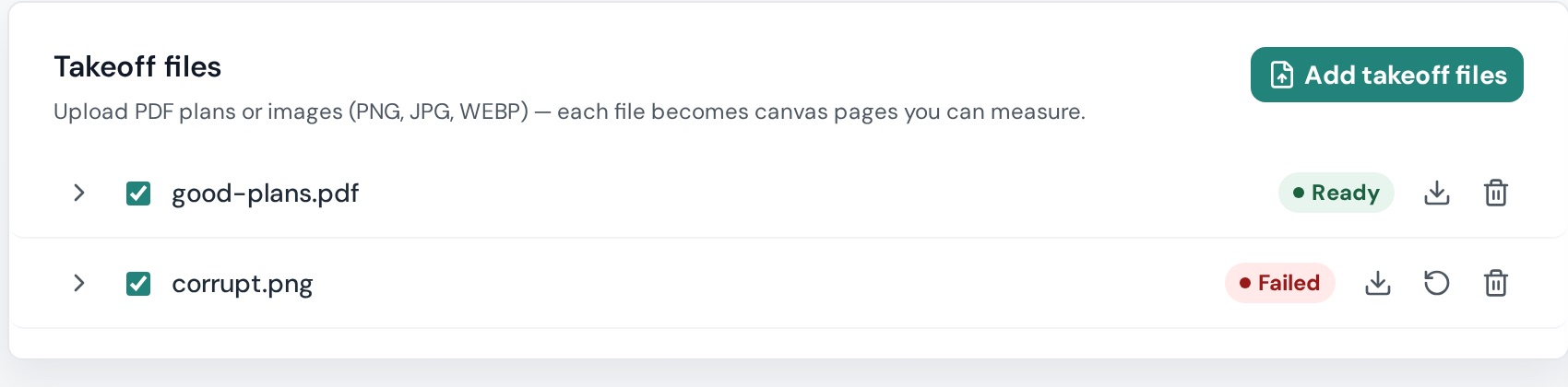
Add takeoff files
- Open the project. You land on Project Details.
- On the Takeoff files card, click Add takeoff files.
- Choose one or more files. Plankore accepts PDF, PNG, JPG, WebP, TIFF and HEIC. A PDF can be up to 500 MB and 500 pages, and an image up to 50 MB. See Supported files and upload limits.
- Each file gets its own row on the card. The row reads Preparing upload while the file uploads, then counts the pages as they render, like 3 of 12 pages ready. A message tells you when every file is done.
Pages show up in Page Preview on the left as soon as they render, so you can start measuring before the whole set has finished. Text recognition (OCR) can keep running after a file is Ready, so Find text on a fresh file may take a little longer to work.
What each row shows
- Chevron. Expand the row to see the pages inside the file.
- Checkbox. Whether the file's pages show on the canvas. Untick to hide every page in the file from Page Preview and Page List. A half-filled box means only some pages are showing. Hiding is not deleting. See Organize pages: add, remove and hide.
- Status badge. Where the file is in processing. It ends at Ready or Failed.
- Icons. Download original, Retry processing (only on a Failed file) and Delete file.
Delete a takeoff file
- On the file's row, click the trash icon, Delete file.
- Read the dialog, Delete takeoff file? It says: Delete [file name] permanently? This also deletes its canvas pages and everything drawn on them, every measurement, takeoff, and estimate.
- Click Delete file.
Add supporting documents
- Scroll down to the Supporting documents card.
- If the card is empty, drop your files onto Drop files here or click to upload. If it already has documents, click Add documents.
- Choose one or more files. Plankore accepts PDF, PNG, JPG, WebP, XLSX, DOCX, DWG and DXF, up to 50 MB each.
- Each file shows Uploading · N% and then joins the list. Everyone in the project can open and download it.
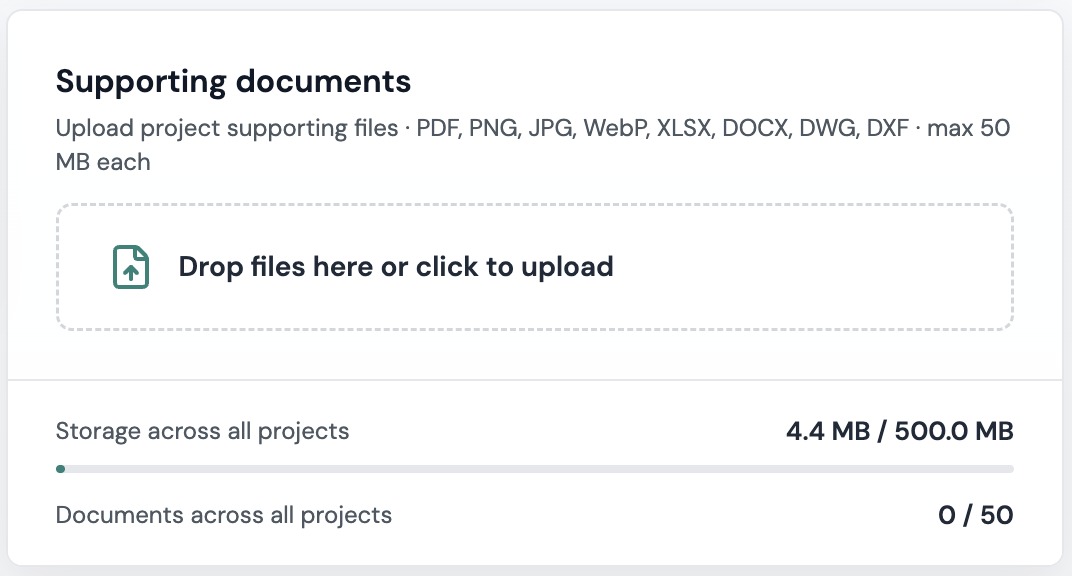
Storage is shared across all your projects
Two bars on the card show Storage across all projects and Documents across all projects. These limits are per account, not per project. On Free Forever they are 500 MB and 50 documents. When you reach one, the card tells you:
- Document storage across all projects is full. Delete an older document to add another.
- The document limit across all projects is reached. Pending uploads count toward it. Delete an older document to add another.
Delete a document you no longer need in any of your projects to free up space.
Delete a supporting document
- On the document's row, click the trash icon.
- Read the dialog, Delete document? It says: Delete [document name] permanently? Every project member loses access to it.
- Click Delete document.
Deleting a supporting document frees space in your account quota. It never touches pages or measurements.
Who can add and delete files
- Owners and editors can add, download and delete both takeoff files and supporting documents.
- Viewers can download only. The card tells them: Viewers can download supporting documents. Ask an editor or owner to upload or delete files.
If you need to add files to a project someone shared with you, ask the owner for Can edit access. See Share a project with your team: edit or view.
If something goes wrong
- A takeoff file shows Failed. Click Retry processing. If it fails again, click Download original and check that the file opens and isn't password-protected. Then Delete file and upload a clean copy. See Supported files and upload limits.
- One page says Render failed. Hover the thumbnail in Page Preview and click Tap to retry.
- "Could not retry…", "Could not download…" or "Could not load takeoff files." Check your connection, reload the page and try again. If it keeps happening, email hello@plankore.ai with the file name.
- The Add button is greyed out. Either you have view-only access, or your account quota is full. The message under the button tells you which.
Still need help?
Email hello@plankore.ai and we'll reply within 48 hours. So we can find your work quickly, include the email you sign in with and the name of the project.