
Export your estimate to Excel or PDF
Download the Estimates table as an Excel workbook or a PDF, add your logo to the PDF, and know what each file contains.
When the estimate is ready, export it. Excel suits your own spreadsheet or a client who wants to work with the numbers. PDF is for printing or attaching to a proposal, and it can carry your logo. Both are on every plan, and anyone in the project can export, including viewers.
Export
- Open Estimates.
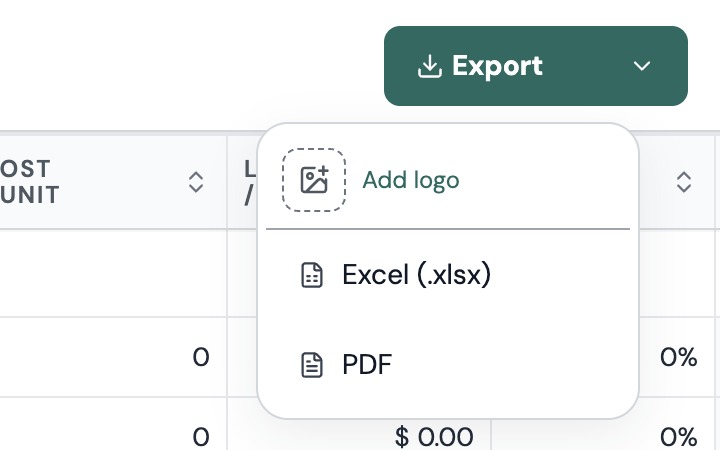
- Click Export at the top right.
- Choose Excel (.xlsx) or PDF.
While the file builds, the button reads Exporting…. Excel is prepared on Plankore's servers and downloads when it's ready, usually within a few seconds. PDF is built in your browser and saves straight away. Check your browser's downloads if you don't see the file.
The file is named after the project. Excel is [project name]-estimates.xlsx. PDF is estimate-[project name]-[date].pdf.
Add your logo to the PDF
- Click Export.
- At the top of the menu, click Add logo and choose a PNG, JPEG or WebP image under 256 KB.
- Choose PDF.
The logo prints in the top right corner of the first page. Plankore remembers it in your browser, so you only add it once. Next time, the menu shows Change logo and Remove. The same logo is used for AI Bid exports.
What's in the Excel workbook
One sheet, named Estimate. At the top is a title block with the date, the project name, Scope, Project Type and Source File, with a blank Project Location row for you to fill in.
Below that, the table has the same ten columns as the screen, in the same order: ITEM NAME, DESCRIPTION, QTY, WASTE %, QTY (WITH WASTE), UNIT, COST / UNIT, LABOR / UNIT, MARKUP, TOTAL PRICE. Folders are bold rows, and lines are indented to match the tree on screen, so an assembly's parts sit under their object. The header row has filters, and it stays in view as you scroll.
The last row is TOTAL, a live formula that sums the column, so the total updates if you change a price in Excel. An object's own total is left blank when its price is made up of the parts under it, so nothing is counted twice.
What's in the PDF
A landscape document titled Estimate , followed by the project name, with the export time under it. The columns are Item, Description, Qty, Waste %, Qty+waste, Unit, Cost/unit, Labor/unit, Markup and Total. Each top-level folder gets a banner with its item count and subtotal, nested folders get a smaller heading, and the document ends with the item count and the grand total. Column headers repeat on every page.
Lines that come from a template print via templates in the cost column, with the priced parts underneath, exactly as on screen.
What isn't exported
- Excluded objects. Anything you've kept out of the total is left out of the file too. See Build an estimate.
- Sales tax as a line. Tax is inside the template lines that use it. There's no separate tax row. See Add prices, waste, markup and sales tax.
- The plans. Download the original files from Project Details. See Add and delete files.
If something goes wrong
- "Couldn't export the estimate. Please try again." The button changes to Retry export. Click it. If it fails again, reload the page and try once more.
- "Export timed out, please try again". A very large estimate took too long to build. Try again in a minute. If it keeps happening, email hello@plankore.ai with the project name.
- "Too many export requests. Please wait a minute and try again." You can export up to ten times a minute per project.
- "Logo is too large, please use an image under 256KB." Shrink the image or save it as a PNG with fewer colors, then Change logo.
- The PDF shows odd characters. The PDF uses a basic font, so unusual symbols in names are simplified.
- Excel opens the file with a security warning. It does that for any downloaded workbook with formulas. The only formula is the total. Click Enable editing.
Still need help?
Email hello@plankore.ai and we'll reply within 48 hours. So we can find your work quickly, include the email you sign in with and the name of the project.