
Draw a takeoff: objects and sections
How objects and sections work, the popup that starts every takeoff, and how to finish a shape with double-click, Enter or Escape.
Objects and sections
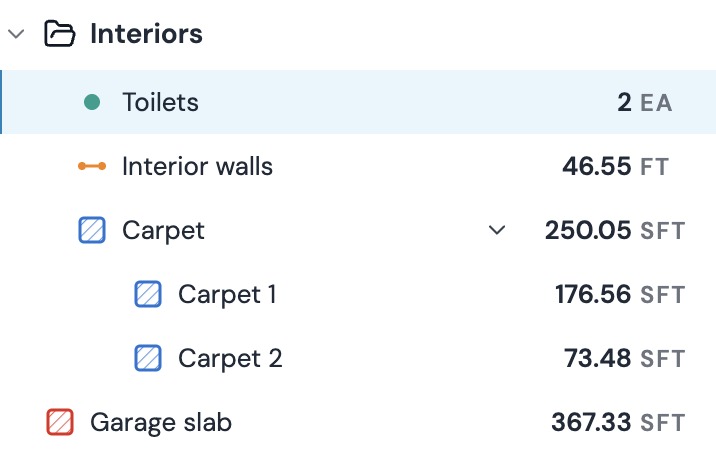
Everything you measure is saved as an object, like Garage slab, Interior walls or Toilets. Each shape you draw for that object is a section.
One object can have many sections. Draw the living room and the hallway as two sections of Hardwood flooring, and the Takeoff panel adds them up into one total.
Before you start
Set the page scale first. Area, Rectangle and Linear need it, and Plankore asks you to set one if the page doesn't have a scale yet. Count works without a scale. See Set the page scale.
Start a measurement
- Pick a tool in the toolbar: Area (A), Rectangle (R), Linear (L) or Count (C).
- A popup opens: New Area, New Linear or New Count. Type a name, and change the color, opacity, thickness or CSI division if you like. All of them have a default, so you can skip straight to the next step.
- Click Save, or press Enter.
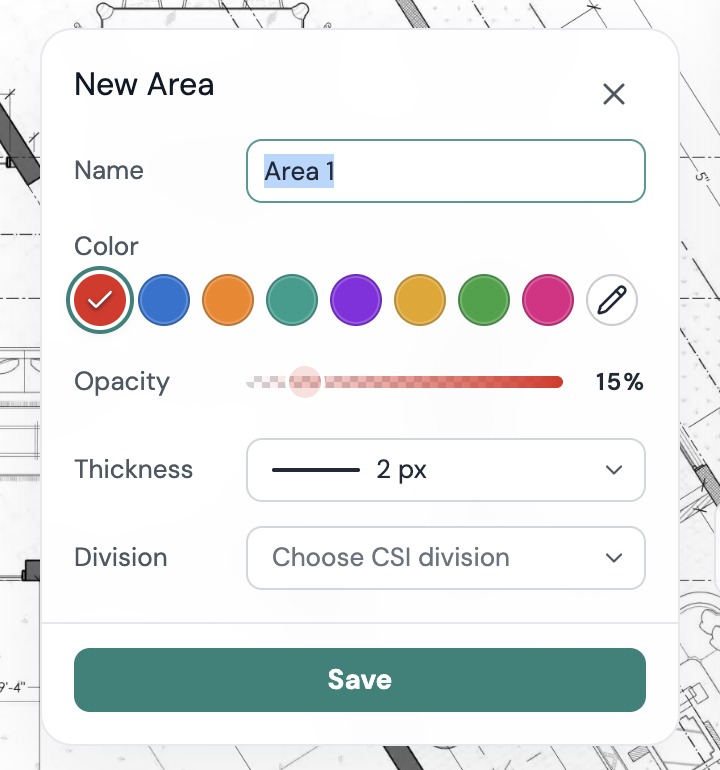
Now you can draw. If you close the popup instead, nothing is created and you're back on Move.
Finish a shape
| Tool | How to finish one shape |
|---|---|
| Area | Double-click, press Enter, or click the first point again |
| Rectangle | Click the second corner |
| Linear | Double-click or press Enter |
| Count | Every click places a marker. Press Enter or double-click to close the batch |
Clicked in the wrong spot? Press Backspace to remove the last point, or the last count marker. Undo (⌘Z / Ctrl+Z) does the same while you're drawing.
Keep drawing, then stop
The tool stays on after you finish a shape, so the next shape you draw becomes another section of the same object. No popup in between.
When you're done with that object, press Escape. Plankore keeps the shape you were drawing if it's complete, switches back to Move and selects what you just drew.
Picking another tool also ends the object you were drawing. The new tool opens its own popup and starts a new object.
Changing pages mid-shape
If you switch pages before a shape is finished, Plankore asks first: "You have an unfinished shape on this page. Switching pages will discard it." Choose Discard & Switch to leave, or close the dialog and finish the shape.
Still need help?
Email hello@plankore.ai and we'll reply within 48 hours. So we can find your work quickly, include the email you sign in with and the name of the project.