
Organize pages: folders, rename and copy
Use Page List to group sheets into folders, move and reorder pages, rename them and find them fast.
A big plan set is easier to work with once the sheets are grouped. Group them by discipline, by building or by bid package, whatever matches how you price the job.
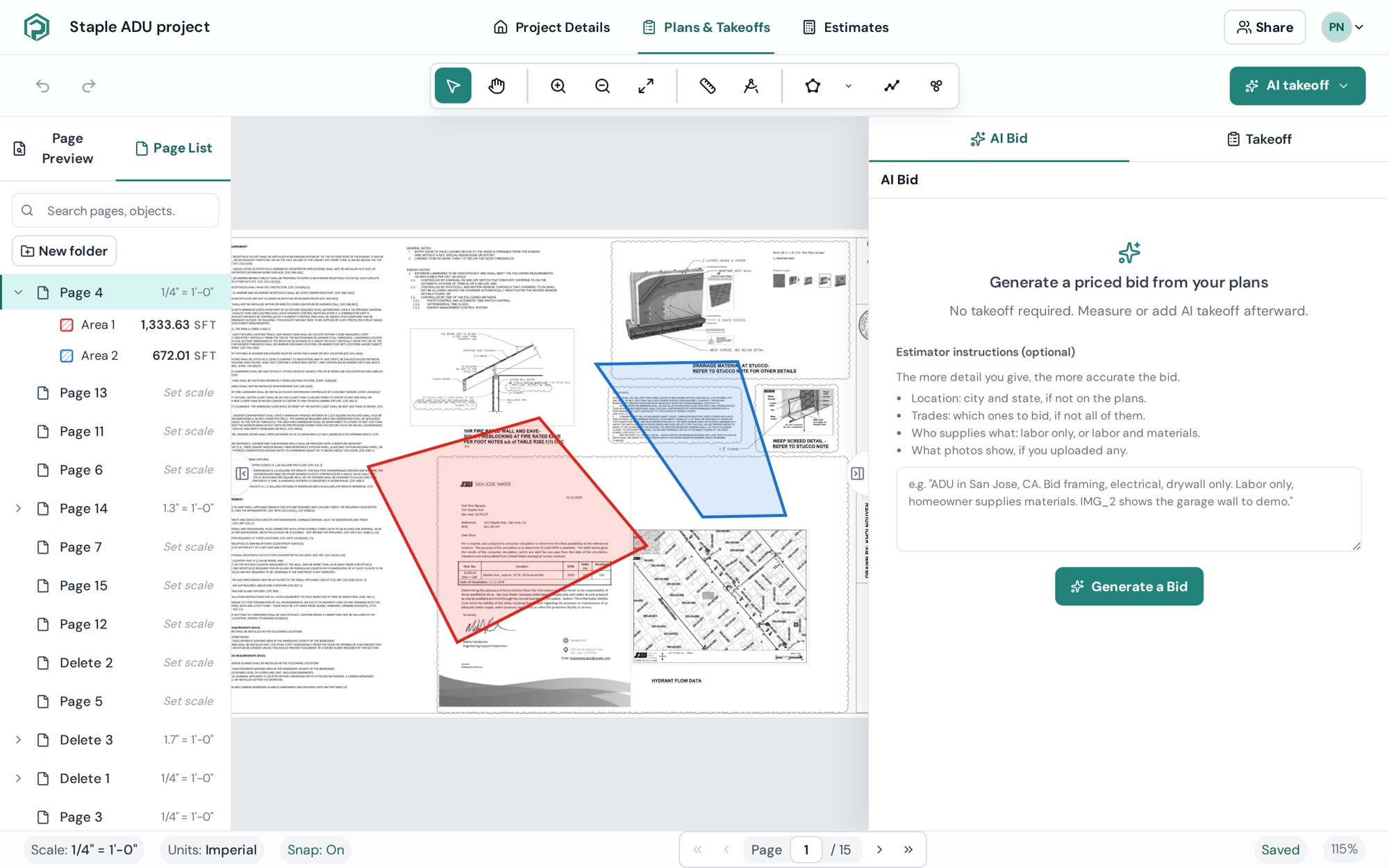
Page list and page preview
The left panel has two tabs. Page Preview shows a thumbnail of every sheet; Page List shows the same sheets as rows you can group and reorder. Click a tab to switch.
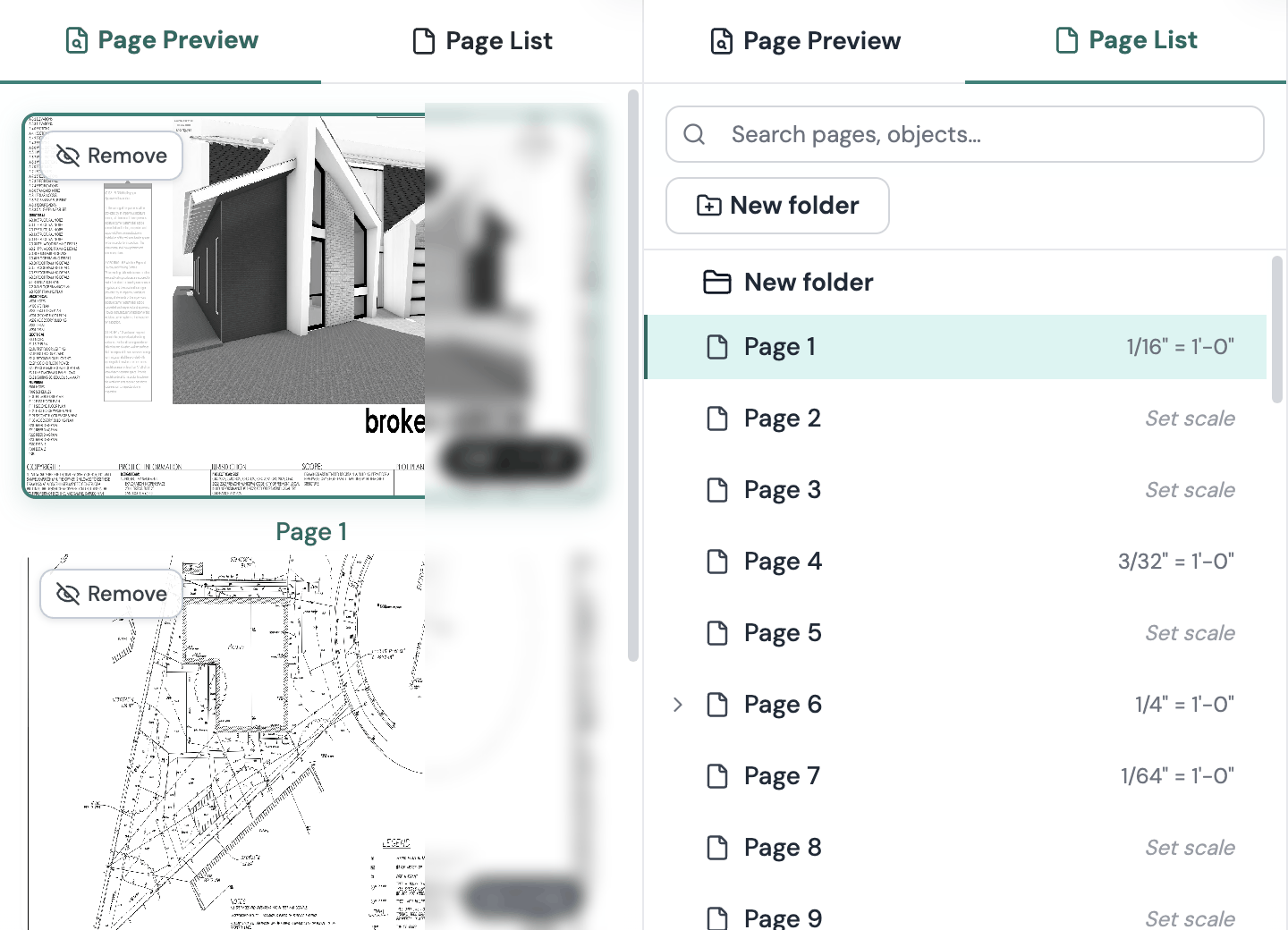
In Page List, each sheet is a row with its scale, or Set scale if it doesn't have one yet. Folders sit above the pages, and the objects you've measured sit under their page.
Create a folder
- Click New folder at the top of Page List.
- A folder called New folder appears. Type a name and press Enter.
To put a folder inside another one, hover the folder and click the Create child folder icon.
To rename a folder later, right-click it and choose Rename.
Move pages into a folder
- Drag: drag a page onto a folder.
- Menu: right-click a page and choose Move to folder, then pick the folder. This option only shows once the project has at least one folder.
You can also drag pages up and down to change their order.
Work with several pages at once
- Cmd+click / Ctrl+click adds or removes one page from the selection.
- Shift+click selects every page between the first and the last one you click.
Then right-click the selection and choose Move N pages to folder or Remove N pages.
Delete a folder
Right-click the folder and choose Delete folder. Plankore tells you how many takeoff objects will be deleted and how many pages will be hidden. Click Delete permanently to go ahead.
Rename a page
Double-click the page name in Page List or under its thumbnail in Page Preview. Type the new name and press Enter. You can also right-click a page in Page List and choose Rename.
With Plankore Pro, the AI names each sheet from its title block. You can change any name it picks.
Find a page
Type in Search pages, objects… at the top of Page List. The list shows only the matches. Clear the box to see everything again.
Copy a page
Right-click a page and choose Copy page. The copy appears right after the original. It keeps the sheet, its name and any scale the AI found, but none of the takeoffs.
Still need help?
Email hello@plankore.ai and we'll reply within 48 hours. So we can find your work quickly, include the email you sign in with and the name of the project.