
Edit takeoffs: reshape, add/remove points
Select one shape or many, move them, drag points, and add or delete points to fix a shape.
Switch to Move (V) first. Everything below happens with the Move tool.
Select
- One shape: click it. You select that one section, and its points show as small squares.
- Add or remove a shape: hold Shift and click.
- Several shapes: drag a box from an empty spot on the plan.
- Drag left to right to select only the shapes fully inside the box. The box is solid blue.
- Drag right to left to select every shape the box touches. The box is dashed green.
- A whole object: click it in the Takeoff panel. All of its sections are selected on the plan.
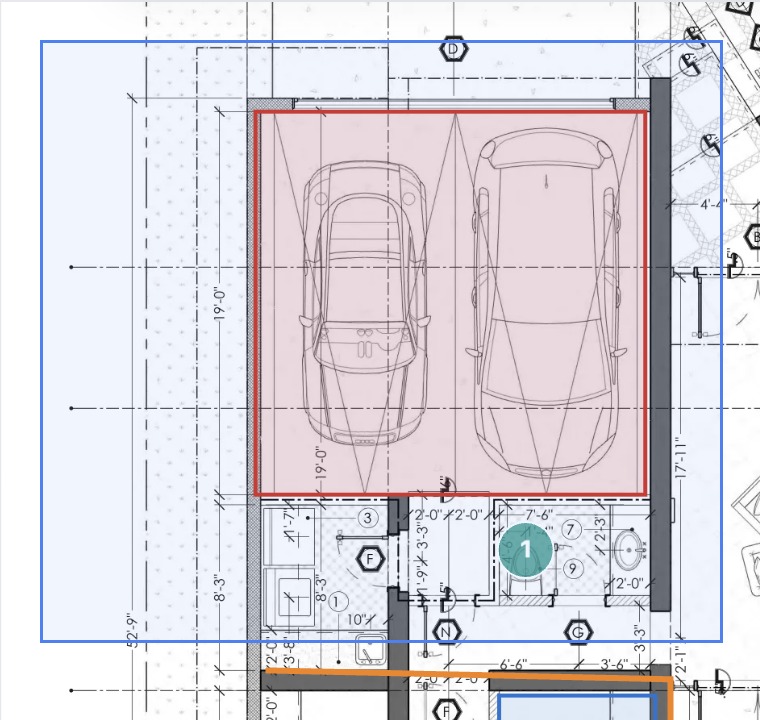
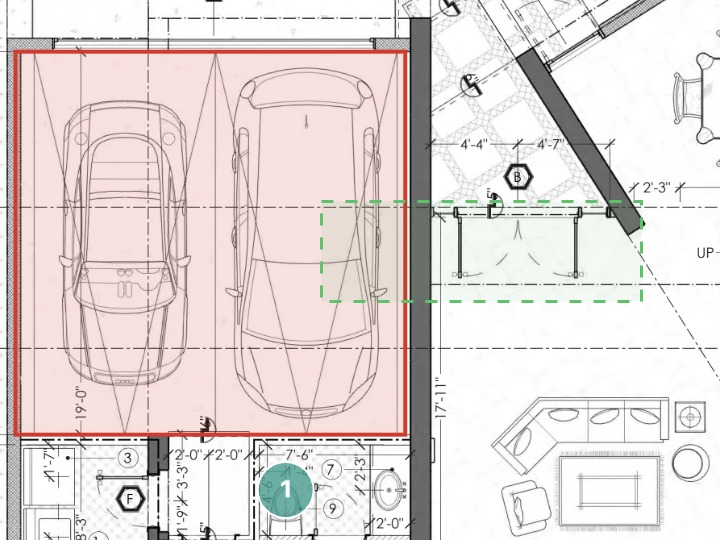
Double-click a selected shape to open its properties. See Edit takeoffs: properties, name and color.
Move a shape
Drag from inside a selected area, or along a selected line. Everything you've selected moves together.
For small moves, use the arrow keys. Hold Shift to move 10 times farther.
Move a point
Drag any point to a new spot. With Snap on, the point snaps to the lines on the plan.
You can also click a point once. It follows your cursor until you click again to place it. Press Escape to put it back.
Add or delete a point
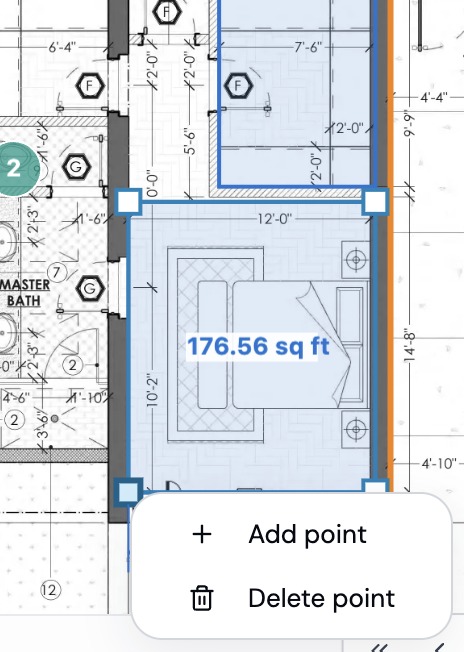
Right-click a point on a selected shape:
- Add point: adds a new point halfway to the next point and attaches it to your cursor. Click to place it.
- Delete point: removes that point. You'll only see it when there are enough points left to keep the shape: more than 3 on an area, more than 2 on a line.
Still need help?
Email hello@plankore.ai and we'll reply within 48 hours. So we can find your work quickly, include the email you sign in with and the name of the project.