
Organize takeoffs: objects, sections, folders
Use the Takeoff panel to find objects, see their sections, hide them, rename them and sort them into folders.
Updated Sep 12, 20262 min read
The Takeoff panel on the right lists every object in the project with its total.
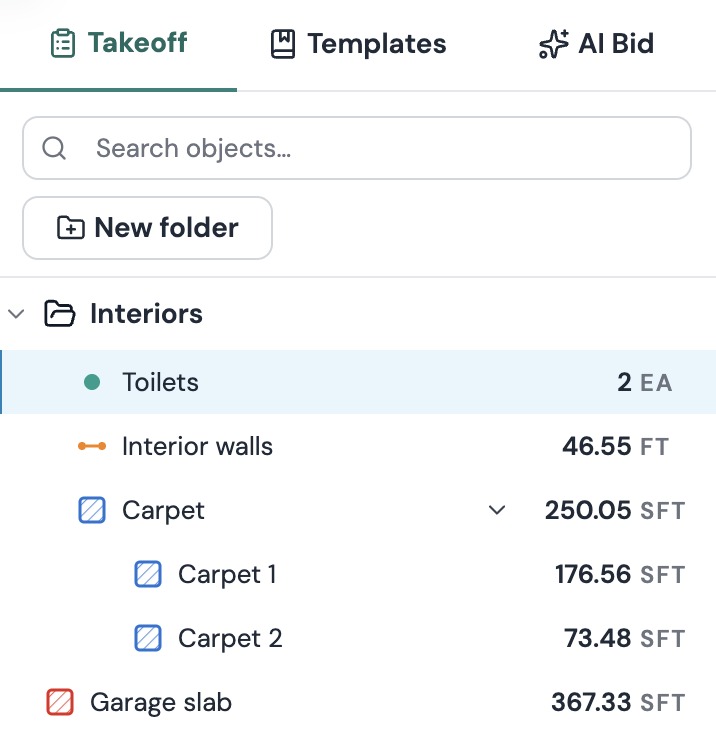
Find and select objects
- Search: type in Search objects… to filter the list.
- Select: click an object. Plankore selects its shapes on the plan, zooms to them and changes page if it needs to.
- Select more: ⌘-click / Ctrl-click to add objects one at a time, or Shift-click to select a range.
- See sections: click the arrow next to an object with more than one section. Sections are listed as Garage 1, Garage 2 and so on, each with its own quantity. Click one to jump to it.
- Hide: hover over an object and click the eye. All of its sections disappear from the plan until you click the eye again.
Rename and more
Right-click an object:
- Rename: edit the name right in the list.
- New Section: draw another section for this object. See Edit takeoffs: add and subtract sections.
- Properties: change color, division and more. See Edit takeoffs: properties, name and color.
- Go to page: shows up when the object is on more than one page.
- Move to folder: pick a folder.
- Delete: deletes the object for good, after you confirm.
Double-clicking an object opens Properties.
Folders
- Click New folder at the top of the panel.
- Double-click the folder name to rename it, for example Interiors or Site work.
- Drag objects into the folder, or right-click them and choose Move to folder.
Folders can have subfolders, up to three levels deep. Drag folders and objects to reorder them. The eye on a folder hides every shape inside it.
Still need help?
Email hello@plankore.ai and we'll reply within 48 hours. So we can find your work quickly, include the email you sign in with and the name of the project.