
Templates and libraries
What parts, assemblies and templates are, where the Templates panel keeps them, and which libraries you can browse and apply on Free Forever and Plankore Pro.
A template turns a measurement into priced lines. Measure a wall, apply a template, and Plankore works out the studs, plates, drywall and labor for you, then prices them in Estimates. This article explains the building blocks and where they live. The rest of the series shows you how to apply a template, read its inputs and formulas and create your own.
Parts, assemblies and templates
- Part. One priced line. A part has a type, Material, Labor, Equipment, Subcontract or Other, a takeoff type it applies to (Area, Linear, Segment or Count), a quantity formula, and its own Cost Each, Waste %, Round Up to Nearest and Markup %.
- Assembly. A group of parts you apply in one go. Apply an interior partition assembly to a wall length and you get studs, plates, drywall, screws and labor as separate lines. An assembly has no calculation of its own. As the app puts it, Assembly calculations are defined on child Parts.
- Template. The word Plankore uses for anything in a library you can apply, whether it's a single part or a whole assembly.
The Templates panel
Open a page in Plans & Takeoffs. The right sidebar has three tabs: Takeoff, Templates and AI Bid. Click Templates.
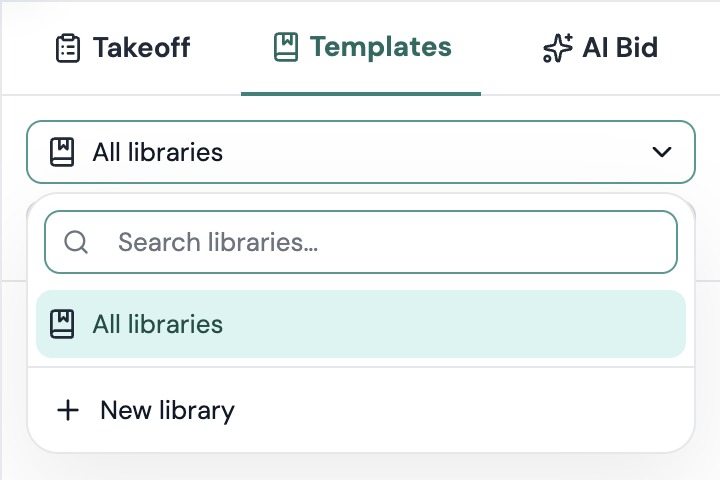 At the top are two rows:
- Library selector. Starts on All libraries. Pick one library to see only its contents. This is also where you add a library of your own with New library.
- Search. Search templates, folders… narrows whatever the selector shows. When a personal library is selected, a New button appears next to the search box.
Below, each library is a collapsible section with a count. Inside a library, templates sit in the folders you made.
Every template row ends with a small badge that tells you what it applies to. Hover it to read Applies to an area, Applies to a linear takeoff or Applies to a count. Click an assembly row to expand it and see its parts.
Look inside a template
Double-click any template, or right-click it and choose Properties, to open Template properties. It lists the template's Takeoff data, Input Data, Formula - Quantity and Formula - Estimating, and for an assembly, the same sections for each part. Nothing here is editable. It's a way to check what a template will ask for and calculate before you apply it.
Which libraries you get
- Your own libraries. Every plan, including Free Forever, lets you create libraries, folders, parts and assemblies, and apply them to your takeoffs. See Create your own templates.
- Sample libraries. Ready-made assemblies and parts from Plankore, grouped by CSI division, are coming soon to Plankore Pro. Until then, build the templates you need in your own libraries.
How a template gets into your estimate
- Measure an area, a length or a count. See Takeoff objects: area, linear and count.
- Drag a template from the Templates panel onto the object, or use one of the other ways in Apply a template.
- Fill in the inputs the template asks for, like wall height or stud spacing, and click Apply Assembly.
- Open Estimates. The object's row now reads via templates and expands to show each priced part. See Build an estimate.
Project-wide settings, like Sales Tax 1 and Sales Tax 2, come from Project Details and Settings and feed every template that uses them.
Still need help?
Email hello@plankore.ai and we'll reply within 48 hours. So we can find your work quickly, include the email you sign in with and the name of the project.