
Measure a distance
Use the Measure tool to check a length on the plan without adding it to your takeoff or estimate.
The Measure tool is a ruler. Use it to check a dimension, confirm your scale, or see how far apart two things are. It never adds to your takeoff or your estimate.
Measure
- Click Measure in the toolbar, or press M. The page needs a scale first.
- Click the start point.
- Click the end point. The ruler is done.
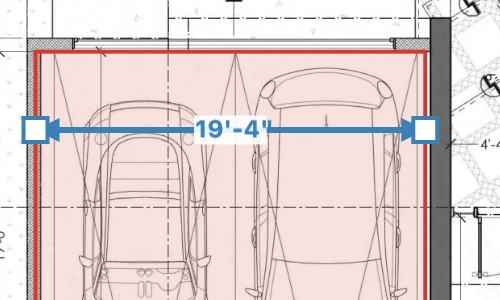
The ruler stays on the plan in blue, with arrowheads at both ends and its length always showing. Measure stays on, so you can keep measuring. Press Escape when you're done.
Measure vs Linear
| Measure | Linear | |
|---|---|---|
| Shows on the plan | Yes | Yes |
| Listed in the Takeoff panel | No | Yes |
| Goes into Estimates | No | Yes |
If you want to price the length, use Linear.
Remove a ruler
Click the ruler to select it, then press Delete. Or right-click it and choose Delete.
You can't drag a ruler's ends. To change it, delete it and measure again.
Still need help?
Email hello@plankore.ai and we'll reply within 48 hours. So we can find your work quickly, include the email you sign in with and the name of the project.