
Chat with P-Chat: messages, files and chats
Send P-Chat a message, point it at a sheet, attach files and pictures, follow and stop its work, download what it sends you, and come back to a chat later.
Send a message
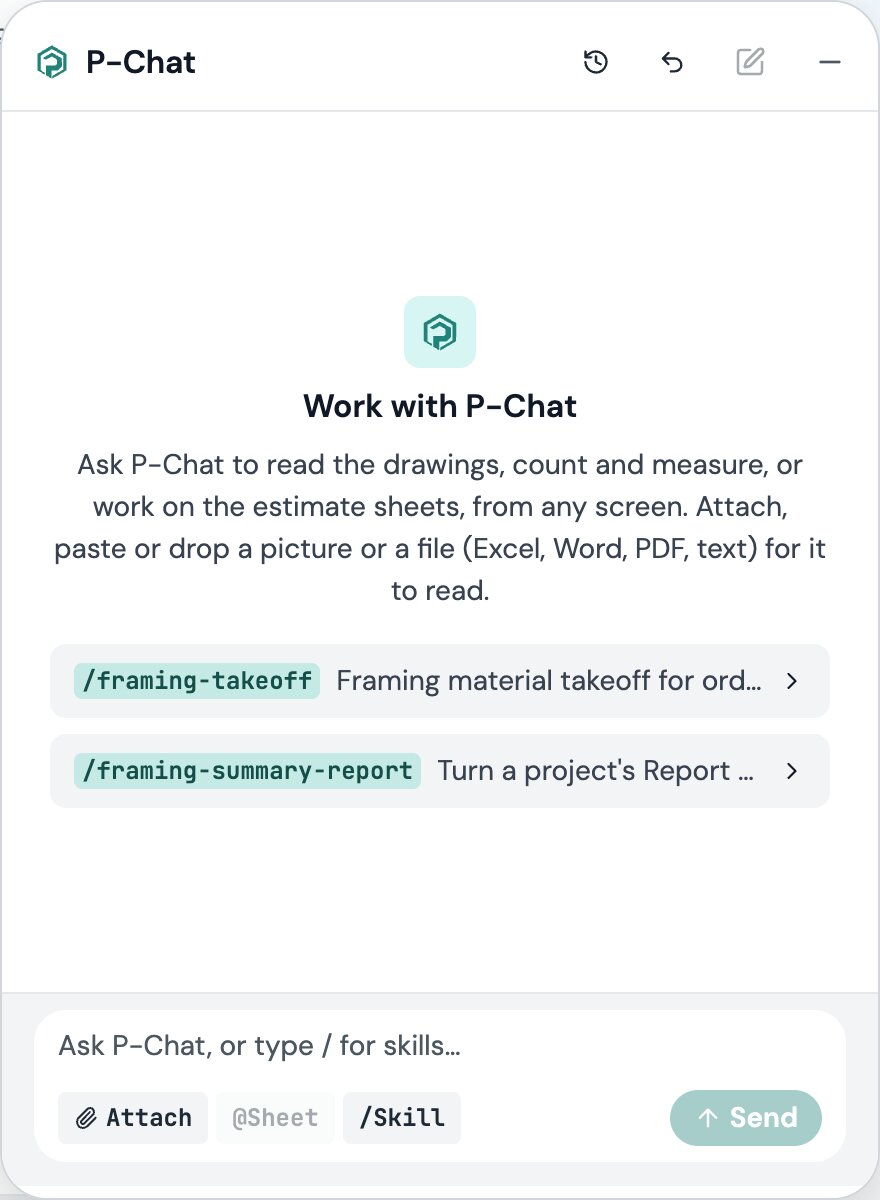
- Click the round AI button at the bottom right to open P-Chat. A new chat starts with Work with P-Chat and the skills you can run.
- Type in the box that reads Ask P-Chat, or type / for skills…. Enter sends; Shift+Enter starts a new line.
- Your message appears with You and the time, and P-Chat starts work.
Point it at a sheet
P-Chat already knows the page you have open: the line above the box reads, for example, Active: Sheet A1.2 or Active: Page 3.
- @Sheet puts the open sheet's number into your message, so you can write Count the outlets on @A1.2 and @A1.3. It needs a sheet number: on a page without one, its tooltip reads Open a sheet with a sheet number to mention it.
- Sheet numbers in P-Chat's replies are links. Click one to open that sheet.
Attach files and pictures
Click Attach, or paste or drop a file onto the window. P-Chat reads:
- Pictures, such as a screenshot or a photo from site.
- PDFs, such as a quote, a spec or a drawing set.
- Excel (.xlsx) and Word (.docx) files. Older .xls and .doc files must be saved in the new format first.
- Text files, such as .txt and .csv.
A message takes up to 5 pictures and files. A file can be up to 250 MB, and an Excel or Word file up to 10 MB. Pictures are made smaller first.
A file uploads as you attach it: the message box shows its name and how far it has got, such as plan.pdf 45%. You can send, or add another file, once it's in; to attach several, pick or drop them together. If P-Chat can't get a file you sent, it says so in its reply; attach it again.
P-Chat reads an attached PDF and can look at any of its pages, but it draws takeoff only on a project's pages. To measure an attached drawing set, ask P-Chat to make a new project from the PDF, or upload it to a project yourself.
While P-Chat works
- Follow along. Working for 12s counts up, with a line for each step: List the pages, Look at page 3, Draw 6 takeoff objects on page 3. When it finishes, the steps fold into one line, such as Worked for 1m 05s · 8 steps. Click it to open them again.
- Keep typing. A message you send while it works waits under the conversation, marked Queued, and P-Chat reads it as soon as it can. Use this to add a detail or change course.
- Stop it. Click Stop, or press Esc in the message box. What it already changed stays; undo it in AI changes (see Check and undo what P-Chat changed).
- Stay in the project. While P-Chat works in a project you can close or dock its window and move around the project (Takeoff, Report, other pages). If you open another project or go back to Projects, it stops the next time it needs the screen, but a job that only draws may not need it again and keeps going, using coins, until it ends. To end it, click Stop. Closing the browser tab stops it too.
- The Report tab. When P-Chat needs the Report and you are elsewhere, it shows P-Chat needs the Report tab to go on. Click Open Report.
A question takes seconds to a minute or two. A long job, such as a full framing takeoff, can take half an hour or more.
Files P-Chat gives you
Ask for a report, a list or a spreadsheet and P-Chat may send it as a file. It appears in the chat as a chip: click it to download.
Your chats
- Chats, the clock icon in the window's header, lists your chats, last used first, each with its title and date. Click one to open it and carry on.
- New chat, the pen icon, starts a fresh conversation. If you start or open another chat while one is working, the first one keeps working until it next needs your screen, then wraps up with a summary of what it did and what is left; open it again from Chats to read it. A job that only draws may run to the end out of sight, using coins. Let a long job finish before you switch, or click Stop first.
- You can open a chat again for up to 30 days after you last used it.
- Your chats are your own. People you share a project with don't see them.
In a very long chat P-Chat summarises the earlier part to make room, and the chat says Earlier messages were summarized for P-Chat. For an unrelated job, a new chat works better.
Messages you may see
| Message | What to do |
|---|---|
| A message takes up to 5 pictures and files. | Send the rest in another message. |
| "plan.pdf" is over 250 MB. Put a drawing set this large in a project, where P-Chat reads its pages. | Upload the drawings to a project, which takes PDFs up to 500 MB (see Supported files and upload limits), or attach just the pages you need. |
| "takeoff.xlsx" is too large to read: P-Chat reads Excel and Word files up to 10 MB. Save it as a PDF or CSV and attach that. | Save it as a PDF or CSV and attach that. |
| "site-photo.jpg" would make this message too large to send. Send it in a message of its own. | The pictures in a message have a size limit of their own. Send that picture in its own message. |
| "plan.pdf" could not be uploaded. Check your connection and attach it again. | Check your connection and attach the file again. |
| "plan.pdf" is no longer uploaded. Attach it again. | A file you attach but don't send is kept for about a day. Attach it again and send the message. |
| Files cannot be uploaded right now. Try again in a moment. or The attached files could not be reached. Try again in a moment. | Try again in a moment. |
| "quote.xls" is an old Excel file. Save it as .xlsx and attach it again. | Save it in the new format. The same goes for an old Word .doc. |
| "model.dwg" can't be read. P-Chat reads pictures, PDFs, Excel (.xlsx), Word (.docx) and text files. | Save it as a PDF or a picture. |
| That file is not a picture this browser can read. | Some photos, such as iPhone HEIC files, can't be read in every browser. Save it as a JPEG or PNG, or as a PDF. |
| Wait until the one being added is ready, then add more. or What you dropped while one was being added was left out. Drop it again. | Wait for the file being uploaded, then add the next one, or pick or drop several together. |
| Stopped: another project is open. or Stopped: you left the project. | You left the project P-Chat was working in, so it stopped. Go back to the project and ask it to carry on. |
| P-Chat did not answer. Try again. or The reply was cut off. Try again. | Send your message again. |
| P-Chat didn't get your message. Send it again. | Send it again. |
| This chat is no longer kept. Start a new one. | A chat can be opened again for up to 30 days after you last used it. Start a new chat. |
| P-Chat is already answering 3 of your chats. Wait for one to finish. | Up to three chats can work at once, for example in separate browser tabs. Wait, or stop one. |
| Your balance is low, so P-Chat answers one chat at a time. Wait for it to finish or top up. | Wait for the running chat, or top up. See AI coins: pay for P-Chat. |
| This chat could not be opened. | Try again in a moment, or start a new chat. |
| You're out of AI coins | Top up. See AI coins: pay for P-Chat. |
If a message keeps failing, contact support with the project name and what you asked.
Still need help?
Email hello@plankore.ai and we'll reply within 48 hours. So we can find your work quickly, include the email you sign in with and the name of the project.