
Find and copy text or images
Search every page for a word or sheet number, and copy text or a picture of any part of a plan.
Find text, Copy as text and Copy as image work on every plan, free included.
Find text
- Click Find text in the toolbar, or press ⌘F / Ctrl+F.
- Type in Search all pages..., like a sheet number, a room name or a note.
- Press Enter to go to the next match, or Shift+Enter for the previous one. The counter shows where you are, for example 1/9 (Page 6).
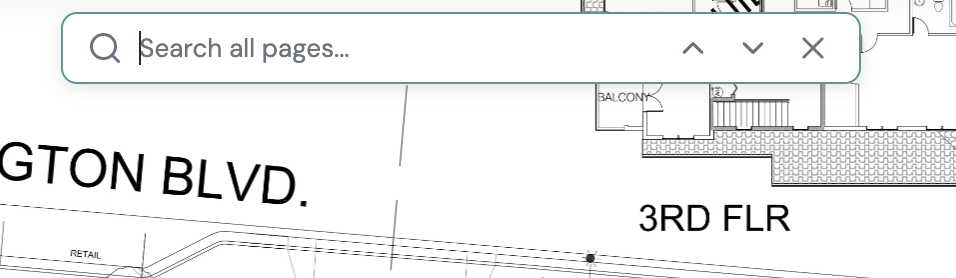
Matches on the page are highlighted in yellow, and the one you're on is outlined in green. Plankore jumps to the right page for you. Press Escape to close the search.
Search ignores capital letters and spaces, so "master bath" also finds MASTER BATH.
If you see Indexing..., Plankore is still reading the text on your pages. Give a big upload a minute. "No matches found" means the text isn't on any page Plankore has read.
Select part of a plan
With Move (V), drag a box around the part you want, like a note, a schedule or a detail. Start on an empty spot on the plan. Then right-click inside the box.
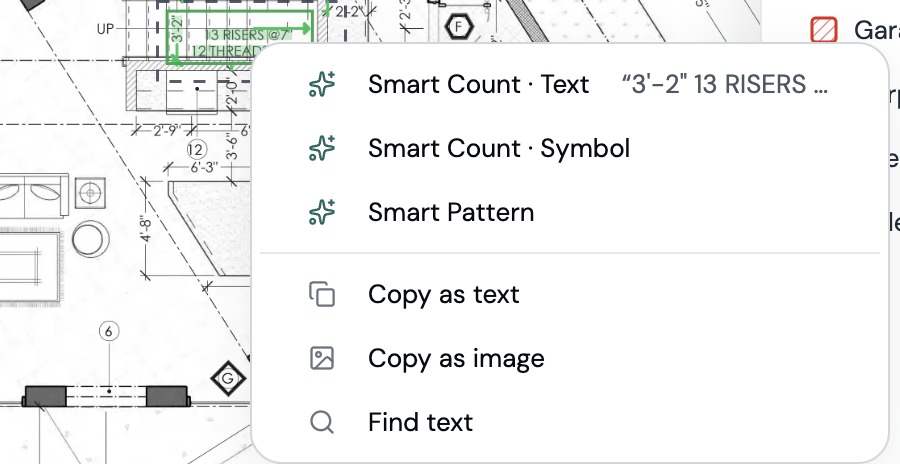
- Copy as text: copies the words inside the box, ready to paste into an email or a spreadsheet.
- Copy as image: copies a picture of the box, ready to paste into a message or a document.
- Find text: searches all pages for the text inside the box.
The same menu has Smart Count · Text, Smart Count · Symbol and Smart Pattern at the top. Those need Plankore Pro.
Copy as text and Find text are greyed out when there's no readable text in the box. Press Escape or click outside the box to clear it.
Still need help?
Email hello@plankore.ai and we'll reply within 48 hours. So we can find your work quickly, include the email you sign in with and the name of the project.