
Supported files and upload limits
Which file types Plankore accepts, size and page limits, what happens during processing, and how to fix upload errors.
File types
| What you're uploading | Accepted files |
|---|---|
| Plans, when you create a project or click Add takeoff files | .pdf .png .jpg .jpeg .webp .tif .tiff .heic .heif |
| Supporting documents, like specs, schedules and CAD files | .pdf .png .jpg .jpeg .webp .xlsx .docx .dwg .dxf |
Plans become pages you can measure. Supporting documents stay as files you can open and download, and they don't become pages.
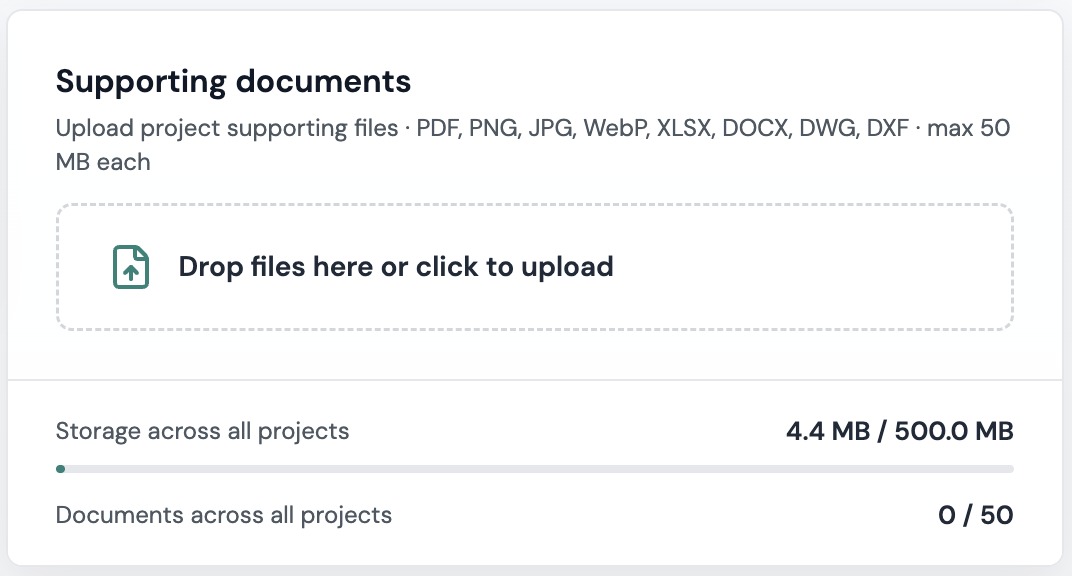
Limits
- PDFs: up to 500 MB and 500 pages per file.
- Images: up to 50 MB each.
- Pages per project: a project can hold up to 300 pages. If your files add up to more, Plankore tells you the selection is over the project limit.
- Supporting documents: up to 50 MB each. On Free Forever you get 500 MB of storage and 50 documents, shared across all your projects. The bars on the Supporting documents card show how much you've used.
If a PDF is too big or has too many pages, split it into smaller PDFs and upload them to the same project. A project can hold as many files as you need, up to the page limit.
What happens after you upload
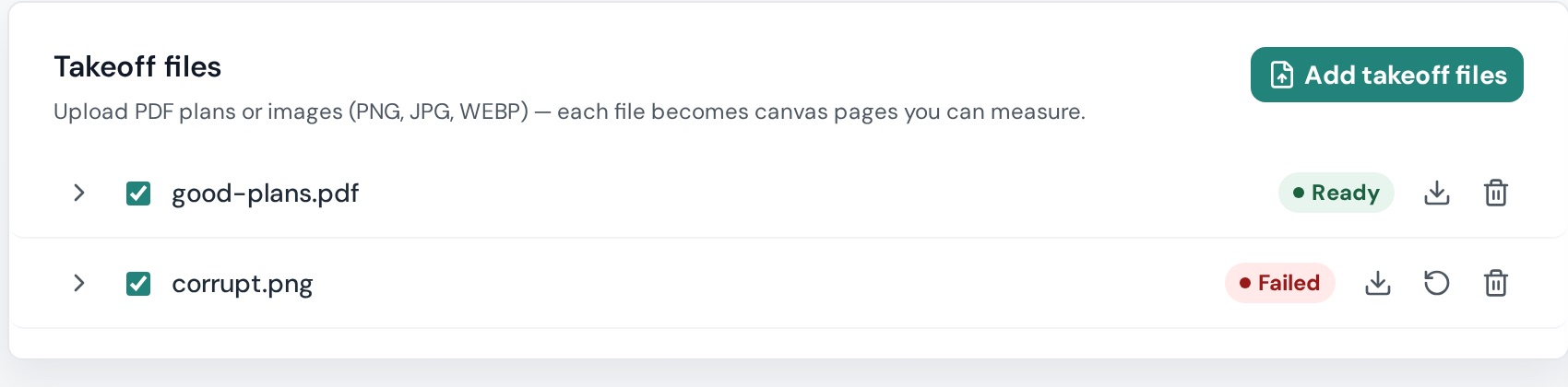
Each file shows its status as it goes: Validating, Queued, Uploading, Finalizing, Rendering, OCR (text recognition), Processing and finally Ready.
You can start measuring a page as soon as it renders. Text recognition, the step Find text and the AI rely on, can keep running for a while after that.
If a file ends up Failed, open Project Details and look at the Takeoff files card. The file's row has buttons to retry, download or delete it.
A single page can also fail to render. Its thumbnail says Render failed. Click Tap to retry.
Password-protected, scanned and CAD PDFs
- Password-protected PDFs can't be uploaded. Remove the password and upload the file again.
- Scanned PDFs work fine. Text search depends on text recognition, so it can take a little longer to be ready.
- PDFs exported straight from CAD render the sharpest and give the best AI results.
Upload errors and how to fix them
| You see | What it means | What to do |
|---|---|---|
| Only PDF or image files are accepted. | The file type can't become a takeoff page. | Save it as a PDF, PNG or JPG. Specs and schedules go under Supporting documents instead. |
| This PDF is password-protected. Remove the password and try again. | The PDF is locked. | Open it in a PDF app, save a copy without the password and upload that. |
| We couldn't read this PDF. It may be corrupted or use an unsupported format. | Plankore couldn't open the file. | Export it again from CAD, Bluebeam or Acrobat, or use Print to PDF, and try again. |
| File is too large. Max 500 MB per PDF, 50 MB per image. | The file is over the size limit. | Split the PDF or make the image smaller. |
| This PDF has more than 500 pages. Split it into smaller sets and upload each separately. | The file has too many pages. | Split it and upload the parts to the same project. |
| This selection has N pages, which exceeds the N-page project limit. | The files add up to more pages than a project can hold. | Split the set into two projects, or email hello@plankore.ai to ask about a higher limit. |
| Connection lost. Check your internet and retry. | The upload was interrupted. | Reconnect and add the file again. |
| Couldn't start the upload. Try again in a moment. | A temporary problem on our side. | Wait a minute and try again. If it keeps happening, email us. |
| Some files could not be processed | One or more files failed while you were creating the project. The rest are fine. | Remove the failed files and click Continue to Takeoff & Bid. You can add them again later with Add takeoff files. |
| A Failed badge on the Takeoff files card | The file failed after it uploaded. | Click Retry processing. If it fails again, download the original to check it, then delete it and upload a clean copy. |
| Render failed on a page thumbnail | That one page didn't render. | Click Tap to retry on the thumbnail. |
| Processing failed. Open Project Details to see why each file failed, then retry or remove it. | None of the pages have rendered yet. | Go to Project Details and check the status of each file on the Takeoff files card. |
Still stuck? Email hello@plankore.ai with the file name and the message you see. See Contact support.
Still need help?
Email hello@plankore.ai and we'll reply within 48 hours. So we can find your work quickly, include the email you sign in with and the name of the project.