
Organize pages: add, remove and hide
Hide, remove or delete the sheets you don't need, get them back, and add pages by uploading, restoring or copying.
Most plan sets have sheets you don't need to measure, like cover sheets, specs and details you don't bid. Plankore gives you three ways to get a page out of the way. They differ in what happens to the measurements on that page and in whether you can undo them, so pick the mildest one that does the job.
| Where | Measurements on the page | Undo? | |
|---|---|---|---|
| Hide | The Takeoff files card on Project Details | Kept | Yes |
| Remove | Page Preview or Page List | Deleted | The page, yes. The measurements, no |
| Delete the file | The Takeoff files card on Project Details | Deleted | No |
Hide a page
Hiding takes a page out of Page Preview and Page List without touching anything drawn on it. Use it for sheets you may need later.
- Open Project Details and find the file on the Takeoff files card.
- Click the chevron to expand the file and see its pages.
- On the page's row, click the eye icon, Hide page. To hide every page in the file at once, untick the checkbox on the file's row.
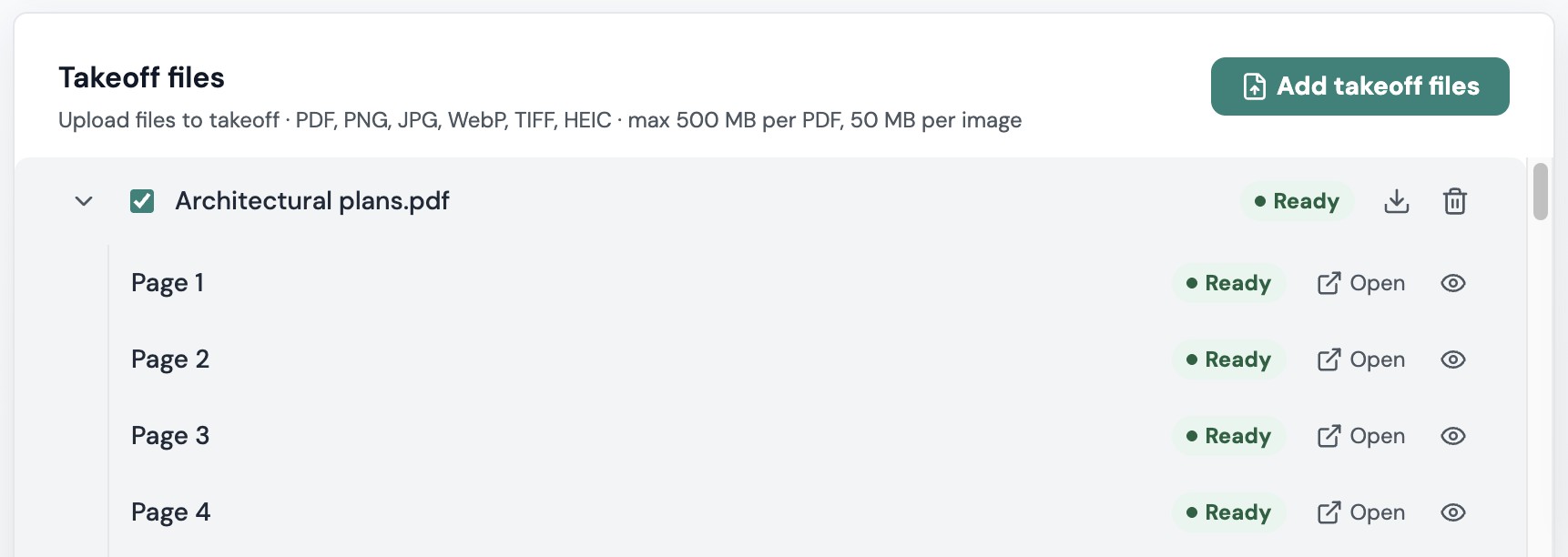
To bring a page back, click Show page, or tick the file's checkbox again. A half-filled checkbox means only some of the file's pages are showing.
Remove a page from the takeoff
Removing is for pages you are sure you don't want to measure. It deletes every measurement on the page, then sets the page aside so you can restore it later as a blank sheet.
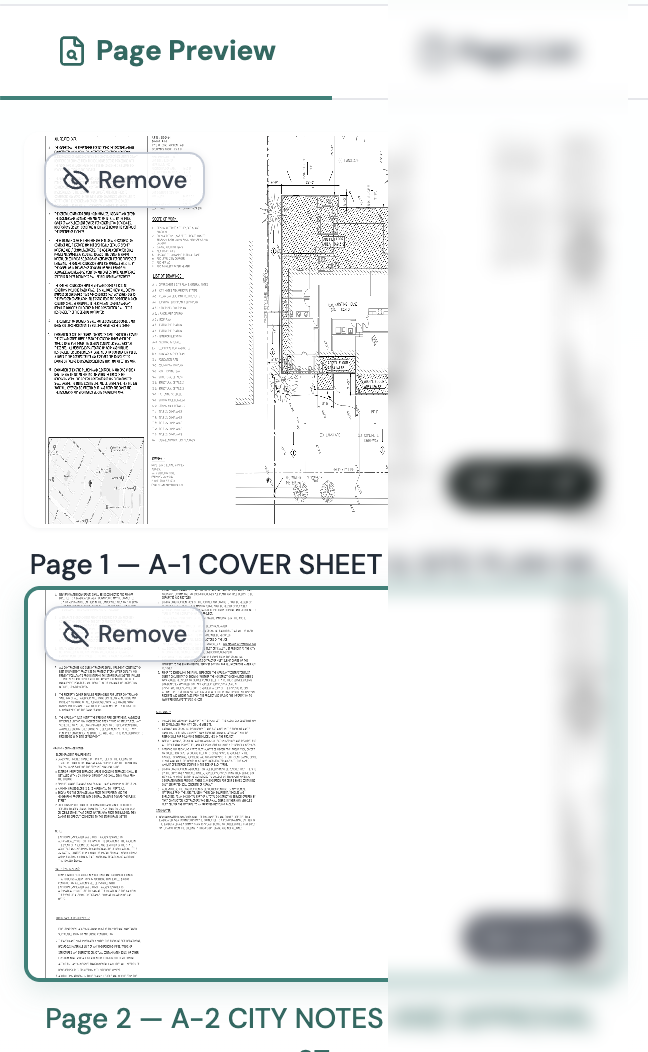
- In Page Preview, hover the thumbnail and click Remove. In Page List, right-click the page and choose Remove.
- Read the dialog, Remove page from Takeoff? It says: Removing [page] permanently deletes [N objects]. The page can be restored later, but the deleted takeoff objects cannot be recovered.
- Click Remove permanently.
The page moves to Removed (N) at the bottom of Page Preview.
Remove several pages at once
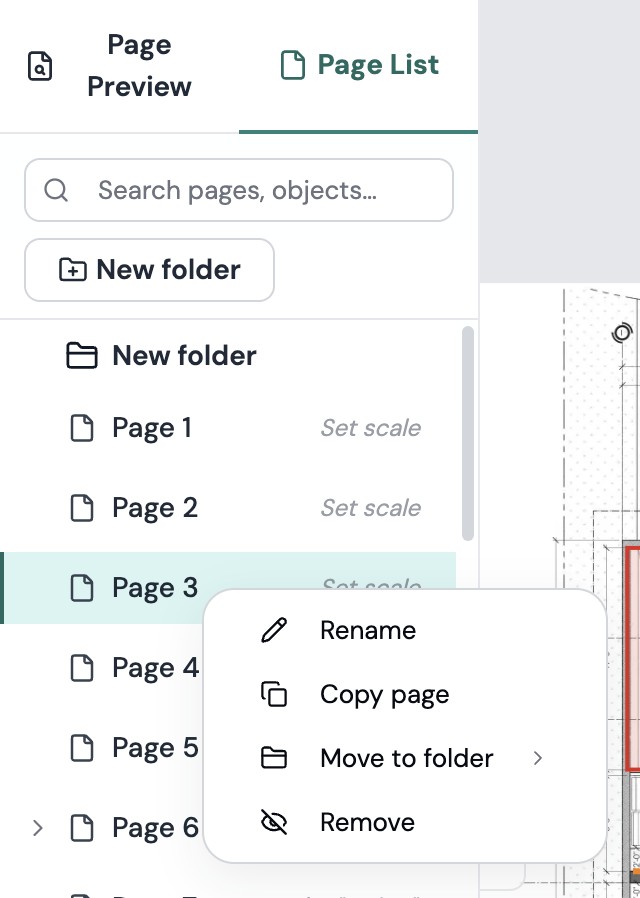
In Page List, select the pages first. Cmd/Ctrl + click adds or removes single pages and Shift + click selects a range. Then right-click and choose Remove N pages. The same dialog appears, with the total number of objects that will be deleted.
Add pages
- Upload more plans. Click Add takeoff files on Project Details. Every page in the file joins the takeoff. See Add and delete files.
- Restore a removed page. In Page Preview, expand Removed (N) and click Restore next to the page. In Page List, right-click the page and choose Restore, or select several and choose Restore N pages. The page comes back empty.
- Copy a page. In Page List, right-click a page and choose Copy page. The copy appears right after the original, so you can keep two versions of the same sheet, for example one per alternate. It keeps the sheet, its name and any scale the AI found, but none of the takeoffs.
Delete a file for good
Deleting a takeoff file removes the file, every page in it and everything drawn on those pages. There is no undo. Do it from the Takeoff files card. See Add and delete files.
If something goes wrong
- A page you removed is missing from Removed (N). Check the Takeoff files card on Project Details. If the page's row says Show page, it was hidden rather than removed. Click Show page.
- A page won't come back. Reload the project and try Restore again. If it still fails, email hello@plankore.ai with the project name and page number.
- Measurements are gone after a restore. That is expected. Removing a page deletes its measurements, and restoring brings back only the sheet.
Still need help?
Email hello@plankore.ai and we'll reply within 48 hours. So we can find your work quickly, include the email you sign in with and the name of the project.