
Edit takeoffs: properties, name and color
Rename an object, change its color, opacity, thickness and CSI division, and read its quantities.
Updated Sep 12, 20261 min read
Open properties
Any of these work:
- Double-click a shape that's already selected on the plan
- Right-click a shape and choose Properties
- Double-click an object in the Takeoff panel, or right-click it and choose Properties
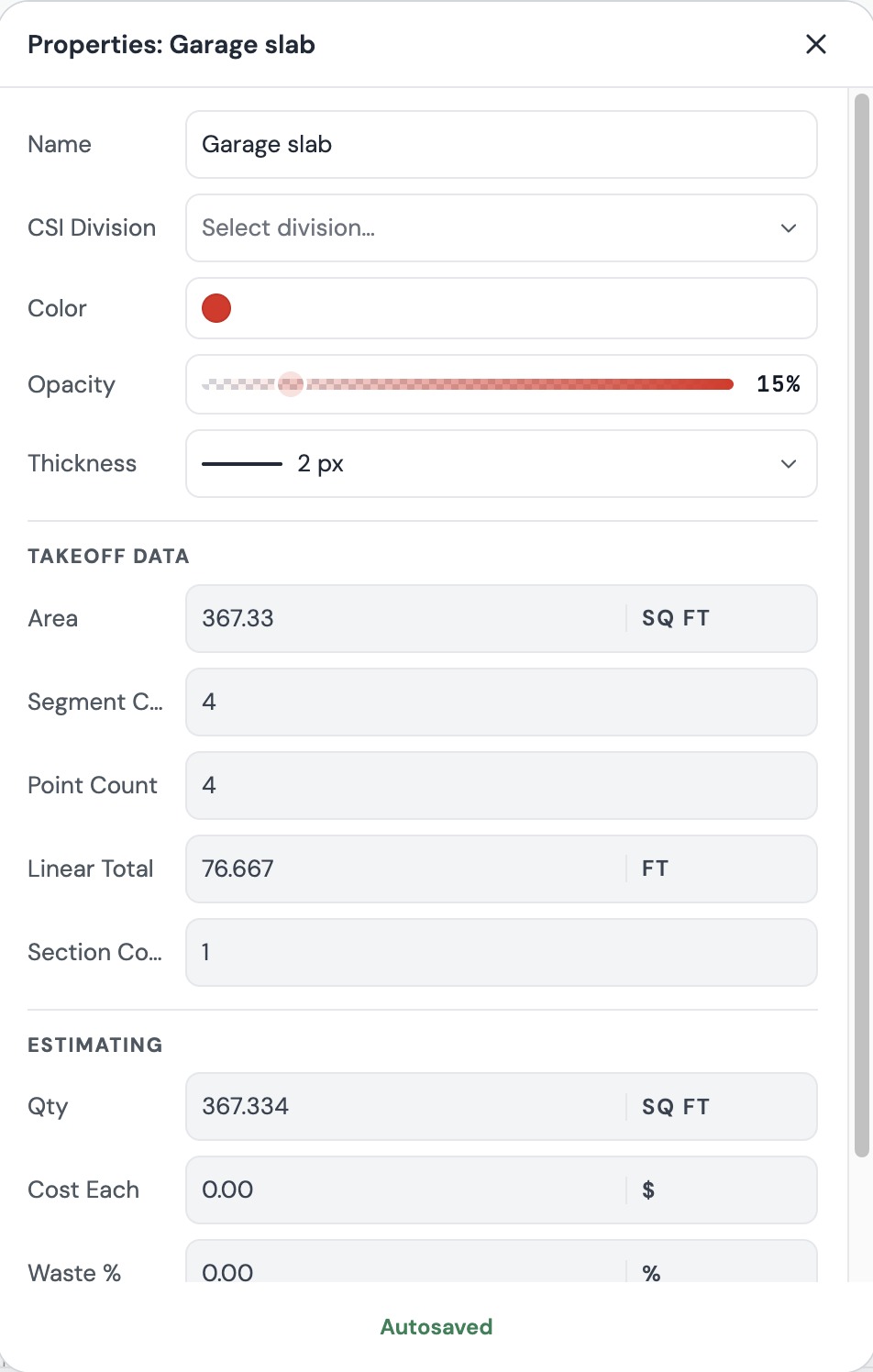
What you can change
- Name: what the object is called in the Takeoff panel and in Estimates.
- CSI Division: search by number or name, like 03 Concrete.
- Color: changes every section of the object.
- Opacity: how see-through the fill is.
- Thickness: how thick the outline or line is drawn on the plan, in pixels. It doesn't change any quantity.
Changes save as you make them. There's no Save button, and the popup says Autosaved. Close it with the X or press Escape.
What you can read
- Takeoff data: the quantity for the object, like Area, Linear Total or Count, plus how many sections, segments and points it has.
- Estimating: Qty, Cost Each, Waste % and Markup %. Prices come from the templates you apply. See Build an estimate.
Opening Properties from a shape's right-click menu shows that one section on its own, with its own totals and a Time Stamp for when it was drawn.
Still need help?
Email hello@plankore.ai and we'll reply within 48 hours. So we can find your work quickly, include the email you sign in with and the name of the project.