
Project details and settings
Rename a project, see who it's shared with, set units and sales tax, and manage the project's files.
Project Details is the first tab in every project. This is where you look after the project itself: its name, who it's shared with, its settings and its files. When you're ready to measure, switch to Plans & Takeoffs.
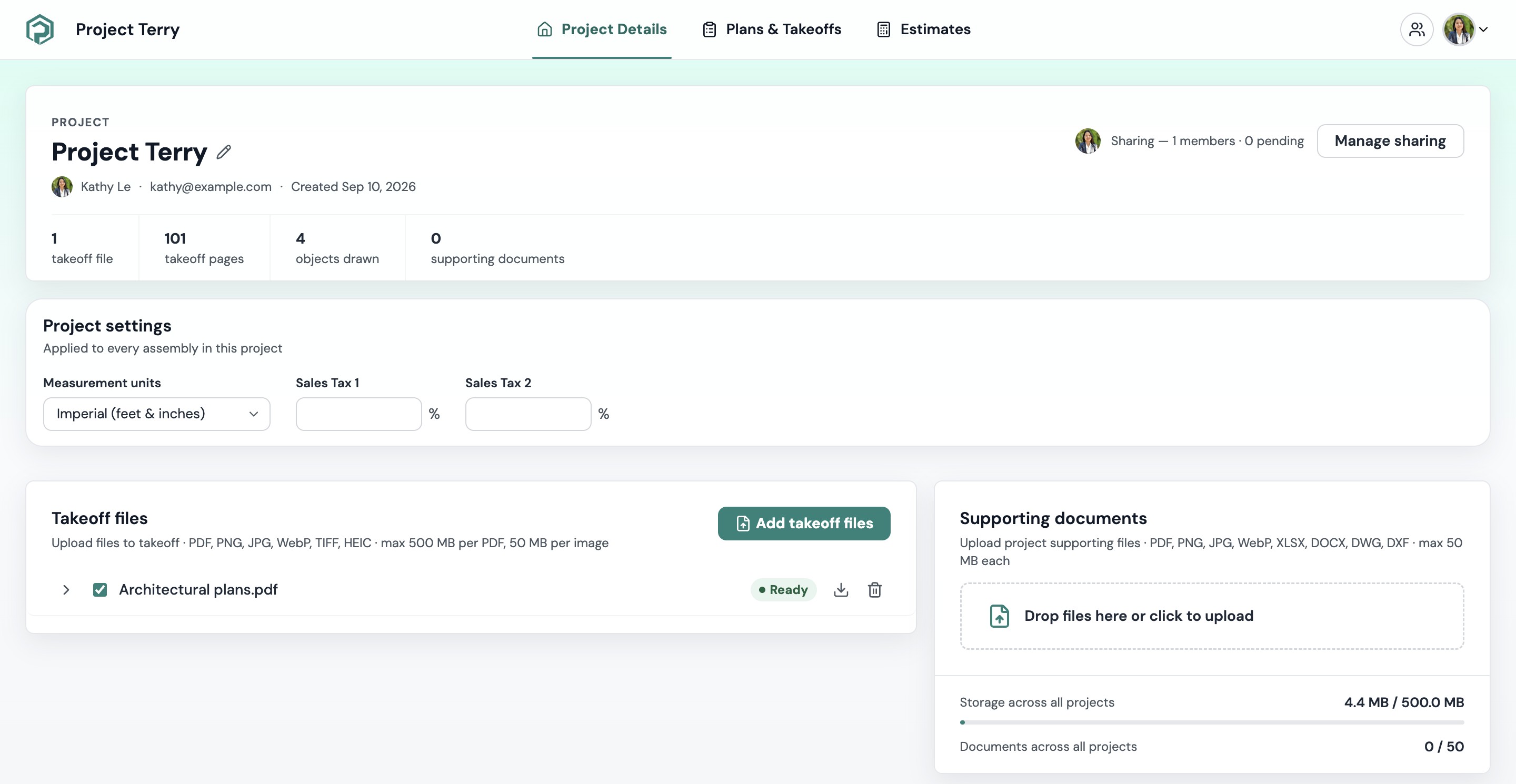
The top of the page
- Project name. Click the name to rename the project. Underneath, you'll see the owner, their email address and the date the project was created.
- Sharing. This shows how many people are in the project and how many invites are still waiting to be accepted. Click Manage sharing to invite someone or change their access. See Share a project and manage members.
- Project stats. A quick count of takeoff files, pages, objects drawn and supporting documents.
The three cards
Below the stats are three cards.
- Project settings holds your measurement units and sales tax. There's more on these below.
- Takeoff files are your plan files, the ones that become pages you can measure. You can add, retry, download and delete files here, and show or hide pages. See Add and delete files.
- Supporting documents are files you keep with the project for reference, like specs, schedules, DWG or DXF drawings and spreadsheets. They don't become pages. For file types and storage limits, see Supported files and upload limits.
Project settings
Project settings apply to the whole project, including every assembly in it. You'll find them on the Project settings card.

Measurement units
Choose Imperial (feet & inches) or Metric (meters). New projects start in Imperial.
Your choice changes how lengths and areas show up everywhere, including the Properties panel, the Estimates tab and your exports. You'll also see the units on the project card in the hub and in the status bar while you work.
You can switch units at any time. Plankore converts what you've already measured, so you don't have to redraw anything. If you see "Measurement units were not saved", try again.
Sales tax
There are two fields, Sales Tax 1 and Sales Tax 2. Enter each one as a percentage, like 8.75. They apply to every assembly and estimate line in the project that uses sales tax, so you only need to set them once.
Two fields are handy if you pay more than one tax, for example state tax and local tax. If you type something that isn't a number, Plankore will ask you to enter a number.
If something goes wrong
- The page won't load. If you see "We couldn't load the project details.", reload the page. If that doesn't fix it, email hello@plankore.ai. See Contact support.
- A file failed to upload. While files are processing, a bar at the bottom of the page shows their progress. If a file fails, the Takeoff files card marks it Failed and gives you a button to try again. See Supported files and upload limits.
Still need help?
Email hello@plankore.ai and we'll reply within 48 hours. So we can find your work quickly, include the email you sign in with and the name of the project.