
Navigate, zoom and pan
Zoom and pan around a plan with your mouse, trackpad or the toolbar, magnify a spot, and move between pages.
Updated Sep 12, 20261 min read
Zoom
- Mouse wheel: scroll to zoom in and out. Plankore zooms toward your cursor.
- Trackpad: pinch to zoom.
- Toolbar: Zoom In, Zoom Out and Fit to Page.
- Zoom level: the percentage in the control bar. Click it to fit the whole page on screen again. 100% means the page fits the screen.

Pan
- Trackpad: swipe with two fingers.
- Pan tool: click Pan in the toolbar, or press P, then drag the plan. Press V to go back to Move.
- Middle mouse button: press and drag, in any tool.
- While drawing: hold Space and drag. You stay in your tool and keep the points you've placed.
Magnify a spot
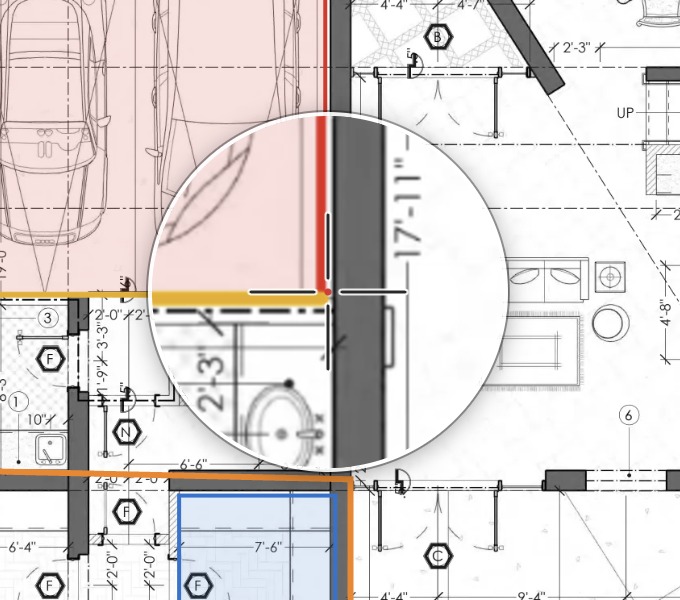
Hold Z. A round magnifier appears under your cursor and shows that spot 2.5 times bigger, including your shapes and snap points. Let go of Z to hide it.
It's handy for placing a point exactly on a corner without zooming the whole page.
Move between pages
- Page thumbnails: click a page in Page Preview or Page List on the left.
- Control bar: use the arrows for first, previous, next and last page, or type a page number and press Enter.
- Keyboard: PageUp and PageDown.

Make more room
Click the small arrow on the edge of the left or right panel to collapse it. Click it again to bring it back. Both panels open again each time you open the project.
Still need help?
Email hello@plankore.ai and we'll reply within 48 hours. So we can find your work quickly, include the email you sign in with and the name of the project.