
Share a project with your team: edit or view
Invite teammates by email as editors or viewers, see who is in the project, cancel a pending invite, change a role or remove a member, and work on the same plans at the same time.
Any project you own can be shared with as many people as you like. Each person gets one of two access levels: Can edit or View only. Both Free Forever and Plankore Pro include 3 editors and unlimited viewers per project. Pro does not add more editor seats.
Open the sharing dialog
There are two ways in:
- Click the Share button (the people icon next to your avatar, top right) from anywhere in the project.
- On the Project Details tab, the Sharing section shows member avatars and Sharing. N members · N pending. Click Manage sharing.
Both open the Share project dialog. Owners and editors can open it. Viewers see the button greyed out; clicking it explains that editing needs editor access.
Invite someone
- In Share project, type their address in Email address….
- Choose View only or Can edit in the menu next to it. View only is the default.
- Click Invite. The dialog confirms Invitation sent to [email]. You invite one person at a time.
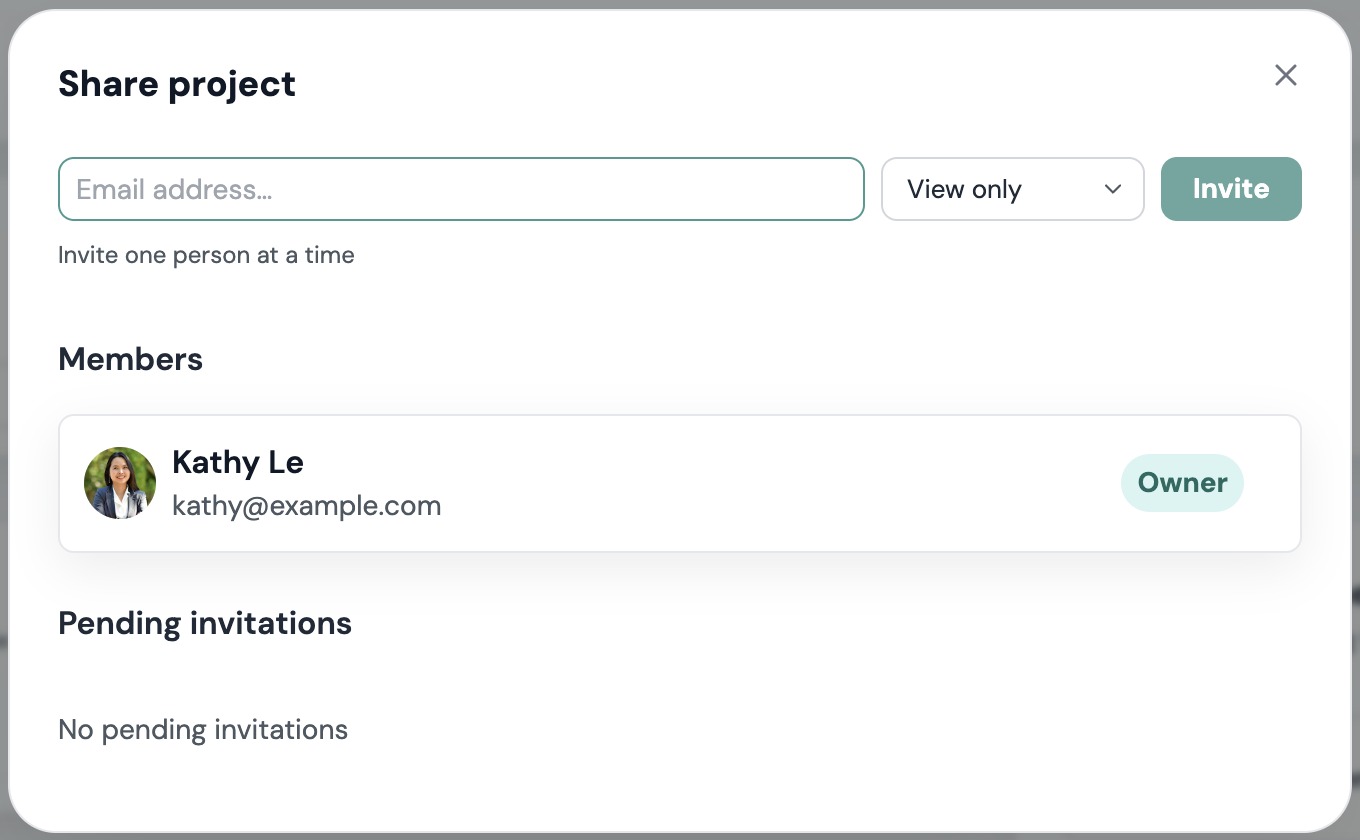
They receive an email titled [Your name] invited you to [Project] on Plankore with an Accept invitation button. The link works for 7 days. Until they accept, they are listed under Pending invitations with an Invited by line and a Pending badge. What happens on their side is covered in Roles: owner, editor, viewer.
Change a role or remove a member
Only the project owner can do this.
- Open Share project and find the person under Members. The owner is always listed first.
- To change their access, pick Can edit or View only from the menu on their row. It saves immediately.
- To remove them, click the remove icon on their row. The dialog Revoke access? says: Remove [name] from this project? They'll lose access immediately. Click Revoke access.
Removing someone does not delete anything they drew. Their measurements and estimate rows stay in the project.
Cancel a pending invitation
- Under Pending invitations, click the trash icon on the invite.
- The dialog Cancel invitation? says: Cancel the invitation for [email]? The link they received will stop working. Click Cancel invite.
Working at the same time
Editors can work in the same project at the same time, so two people can split a plan set instead of taking turns. Everything saves automatically. When someone else changes the page you are on, a Canvas updated notice appears and the canvas refreshes.
Everyone currently in the project shows as an avatar in the header. Click an avatar to follow that person: a banner reads Following [name] and your view tracks theirs as they move between pages and zoom. Click × (Stop following) to take control back.
Projects shared with you
Projects other people invited you to appear on your Dashboard under the Shared with me tab, with an Editor or Viewer badge and a line like Owner: [name] · Invited by [name]. They do not count toward your own monthly project allowance. See Project hub.
If something goes wrong
- Enter a valid email address. Check for typos and spaces.
- This person is already a member of this project. They are in Members already. Change their role there instead.
- This email already has a pending invitation to this project. Cancel the pending invite, then send a new one.
- Cannot invite the project owner. The owner already has full access.
- We couldn't send that invite. Check your connection and try again. Reload the page and retry. If it keeps failing, email hello@plankore.ai with the project name and the address you invited.
- We couldn't load sharing details. Refresh the page or try again in a moment. A temporary connection problem. Close the dialog and open it again.
- They never got the email. Ask them to check spam. The link expires after 7 days; cancel the pending invite and send a fresh one.
Still need help?
Email hello@plankore.ai and we'll reply within 48 hours. So we can find your work quickly, include the email you sign in with and the name of the project.